

Black and White Image Converter
Convert your color photos into black-and-white images online for free. Preview the result, choose grayscale or pure black and white, and download your image without installing software.
Free to use · No signup · No upload
Upload an Image to Convert to Black and White
Drag and drop a JPG, PNG or WebP here, or choose one from your device.
Images are opened and converted in your browser. The file is not uploaded to our server.
What Is a Black and White Image Converter?
A black and white image converter takes a color picture and removes the color. You keep the brightness of every pixel, so the shapes, shadows and highlights stay where they were.
Most people mean grayscale when they say black and white. A grayscale image uses many shades between black and white, which is how a classic black-and-white photograph looks.
A pure black-and-white image is stricter. Every pixel is either black or white, with no gray at all. It looks like a stamp or a photocopy, and it suits line art, signatures and graphic designs better than portraits.
This tool does both. Grayscale is the default because it keeps the most detail in photos.
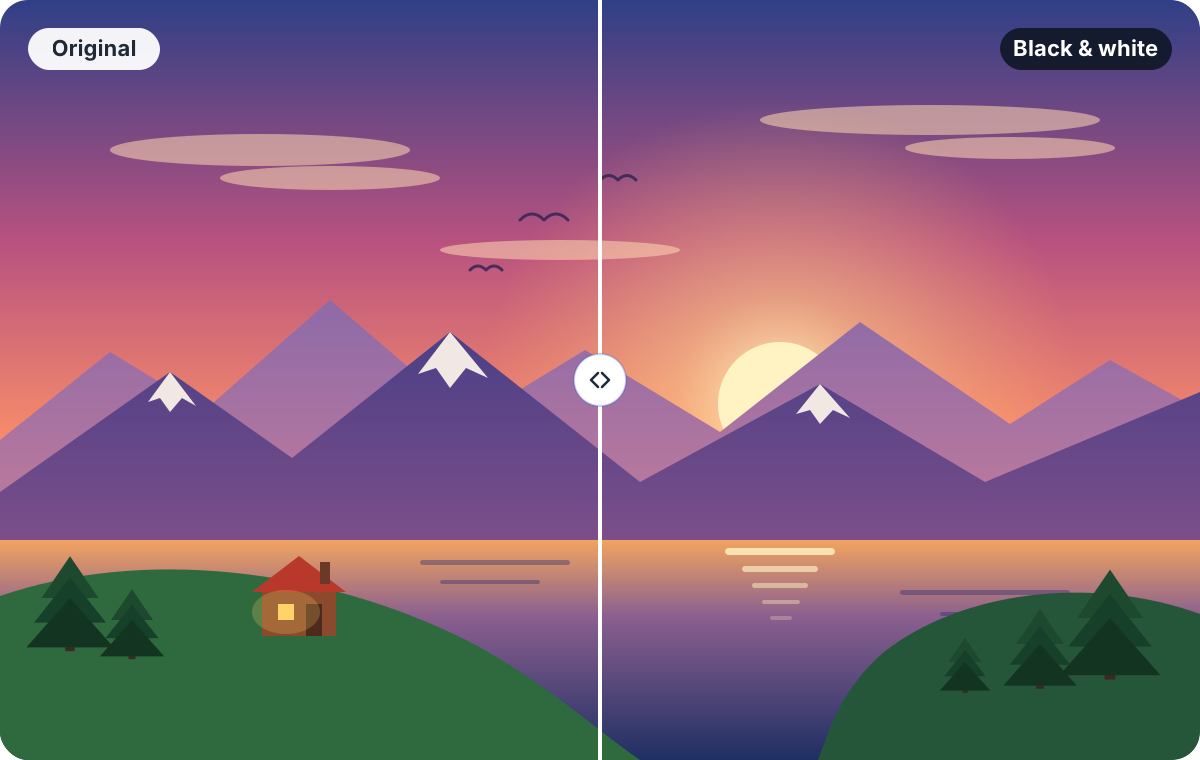
Convert an Image to Black and White Online
- 1
Upload an image
Press Choose Image, or drop a JPG, PNG or WebP file onto the upload area. On a phone you can pick a photo from your gallery.
- 2
Choose a mode
Grayscale keeps every shade of gray. Pure Black and White turns each pixel black or white. Grayscale is selected by default.
- 3
Adjust the threshold
In Pure Black and White mode a slider appears. A lower value turns more of the picture white, and a higher value turns more of it black.
- 4
Press Convert to Black and White
Your original and the black-and-white version appear side by side, with the pixel size of each. After the first conversion, changing the mode or the slider updates the preview.
- 5
Choose an output format
Pick PNG, JPEG or WebP under Download as. PNG keeps every pixel exactly and keeps transparency.
- 6
Download the converted image
Press Download Image. The file is saved as your original name plus -black-and-white, for example holiday-black-and-white.png.
Why Convert an Image to Black and White?
Black and white is a choice, not an upgrade. Some pictures lose what made them good once the color is gone, so compare the two previews before you download.
Photography
Artistic photography
Without color, the eye notices light, texture and shape. Street scenes, architecture and strong shadows often read better this way.
People
Portraits
Black and white hides distracting clothing colors and uneven skin tones, so attention stays on the face and the expression.
Files
Documents and illustrations
Scans, sketches and diagrams are often easier to read in high contrast. Pure black and white works well for signatures and line drawings.
Online
Social media graphics
A set of images in one tone looks consistent in a feed, even when the originals were shot in different light.
Output
Printing
A black-and-white file is a sensible start for a monochrome printer or a one-color print job, and you can see the result before it is printed.
Design
High-contrast visual designs
A two-tone image can be a base for posters, stencils and cut-outs, where you need clear shapes rather than gradients.
Grayscale vs. Pure Black and White
The two modes share one starting point: a gray value for every pixel, worked out from its red, green and blue values. They differ in what happens next.
| Feature | Grayscale | Pure Black and White |
|---|---|---|
| Colors in the result | Many shades of gray, from black to white | Exactly two: black and white |
| How it works | Each pixel keeps its brightness | Each pixel is compared with the threshold, then set to black or white |
| Detail | Soft transitions and fine detail survive | Gradients become hard edges, and small detail can disappear |
| Controls | None needed | Threshold slider from 1 to 254 |
| Best for | Photos, portraits, landscapes | Signatures, logos, line art, stencils, text scans |
If a pure black-and-white result looks too dark or too bright, move the threshold before you decide the picture will not work.
Benefits of This Online Tool
Free to use
There is no signup, no watermark and no limit on how many images you convert.
Nothing to install
It runs in your browser on a computer, tablet or phone.
Processed in your browser
The image is converted on your device with the browser's own canvas. We do not upload the file to our server, and the tool needs no API or account.
Preview before you download
See the original and the result next to each other, and change the mode or threshold until you like it.
Three output formats
Save as PNG, JPEG or WebP, depending on where the image is going.
Your pixel size is kept
The download has the same width and height as the picture you uploaded. Photos taken with a rotated camera are shown, and saved, the right way up.
A note on privacy: converting happens locally, so your picture does not travel to us. The finished file is saved by your browser into your normal downloads folder. Camera information such as the location in a photo's metadata is not copied into the download.
Supported Image Formats
You can open JPG, PNG and WebP images up to 20 MB. The converted image can be saved in any of the same three formats.
| Format | Open it | Save it | Good to know |
|---|---|---|---|
| JPG / JPEG | Yes | Yes | No transparency, so transparent areas are filled with white. Saved at 92% quality. |
| PNG | Yes | Yes | Lossless, and keeps transparency. A good choice for pure black and white. |
| WebP | Yes | Yes, if your browser can | Small files. A few older browsers cannot save WebP, and the tool tells you if yours is one of them. |
Animated GIF, animated PNG and animated WebP files are not supported, and neither are SVG, HEIC or AVIF. To change one of those to JPG or PNG first, use the Image Converter. Images over 40 megapixels are too large for a browser to handle reliably, and the tool will say so.
Frequently asked questions
How can I convert a color image to black and white?
Press Choose Image and pick your photo, select Grayscale or Pure Black and White, then press Convert to Black and White. When the preview looks right, choose PNG, JPEG or WebP and press Download Image.
Is this black-and-white image converter free?
Yes. It is free, with no signup, no watermark and no limit on how many images you convert.
Do I need to install any software?
No. The converter works in a modern browser on Windows, macOS, Linux, Android and iOS. Nothing is downloaded except the image you save.
Does the tool upload my image to a server?
No. The image is read and converted in your browser, and the download is created there too. The tool does not send the file to our server.
Your browser still loads this web page from the internet, as it does for any site, but the picture itself stays on your device.
Does converting an image to grayscale reduce its dimensions?
No. The converted image has the same width and height in pixels as the original, and both sizes are shown next to the previews. The file size can change, because the format and compression decide that.
What is the difference between grayscale and pure black and white?
A grayscale image has many shades of gray between black and white. A pure black-and-white image has only two values, black and white, chosen by a threshold you set with the slider.
Grayscale keeps more detail and suits photos. Pure black and white gives a high-contrast graphic look.
Can I download a black-and-white image as PNG?
Yes. PNG is the default output format. It is lossless and keeps transparent areas transparent. You can also choose JPEG or WebP before you download.
Can I convert JPG to black and white?
Yes. Upload a JPG or JPEG file, convert it, and save the result as JPEG again, or as PNG or WebP. Saving as JPEG applies compression again, so PNG is better if you want to avoid that.
Can I use the tool on a mobile phone?
Yes. The page adapts to small screens, the upload button opens your photo library or files, and the controls are sized for touch. Very large photos use more memory, so a phone may be slower than a computer.
Why does a pure black-and-white image sometimes lose detail?
Pure black and white has only two values, so every gray in the picture has to become either black or white. Soft shading and fine texture that sit close to the threshold are pushed to one side and can vanish.
Move the threshold slider to keep the part of the image you care about, or use Grayscale if you want to keep the detail.