

Image Resizer
This image resizer changes a photo's width and height in pixels or by percentage, and keeps the aspect ratio locked so nothing gets squashed. You see the new size and the real file size before you download.
Free to use · No signup · No watermark · JPG, PNG, WebP
Step 1: Add your photo
JPG, PNG or WebP. It stays on your device.
Drop an image to resize
JPG, PNG or WebP up to 20 MB. You can also paste a screenshot.
Your image is resized in your browser and never uploaded.
How to Resize an Image Online
- 1
Add your image
Drop a JPG, PNG or WebP file onto the tool, pick one from your device, or paste a screenshot with Ctrl+V or Cmd+V.
- 2
Set the new size
Type a width or a height in pixels, or switch to Percentage and pick a scale. With the ratio locked, the other side follows by itself.
- 3
Check it and download
The preview and the new file size update as you go. Pick a format and quality, then download. The original file is left as it was.
Resize Image in Pixels or by Percentage
Resizing changes how many pixels an image has. The picture stays the same, and so does its shape if the aspect ratio is locked. There are two ways to say what size you want.
Pixels: when you were given a number
Use pixels when a form, template or brief states a size, such as "at least 1080 px wide" or "no larger than 800 × 600". Type the width and the height follows, or type the height and the width follows. If you need both numbers exactly and they don't match your photo's shape, see Crop, fit or stretch below.
Percentage: when you want it smaller or bigger
Use a percentage when there's no fixed target and you want a lighter file. 50% halves each side. The pixel count drops to a quarter, and the file size usually drops by a similar amount. Percent is always measured against the original, so 50% twice in a row still means half, not a quarter.
| Scale | New size | Pixels kept | Good for |
|---|---|---|---|
| 100% | 4000 × 3000 | All 12 MP | Printing, editing later |
| 50% | 2000 × 1500 | 3 MP (25%) | Full-screen viewing, sharing |
| 30% | 1200 × 900 | 1.08 MP (9%) | Blog posts, email |
| 20% | 800 × 600 | 0.48 MP (4%) | Forms, thumbnails |
Three Resizes, With the Real Numbers
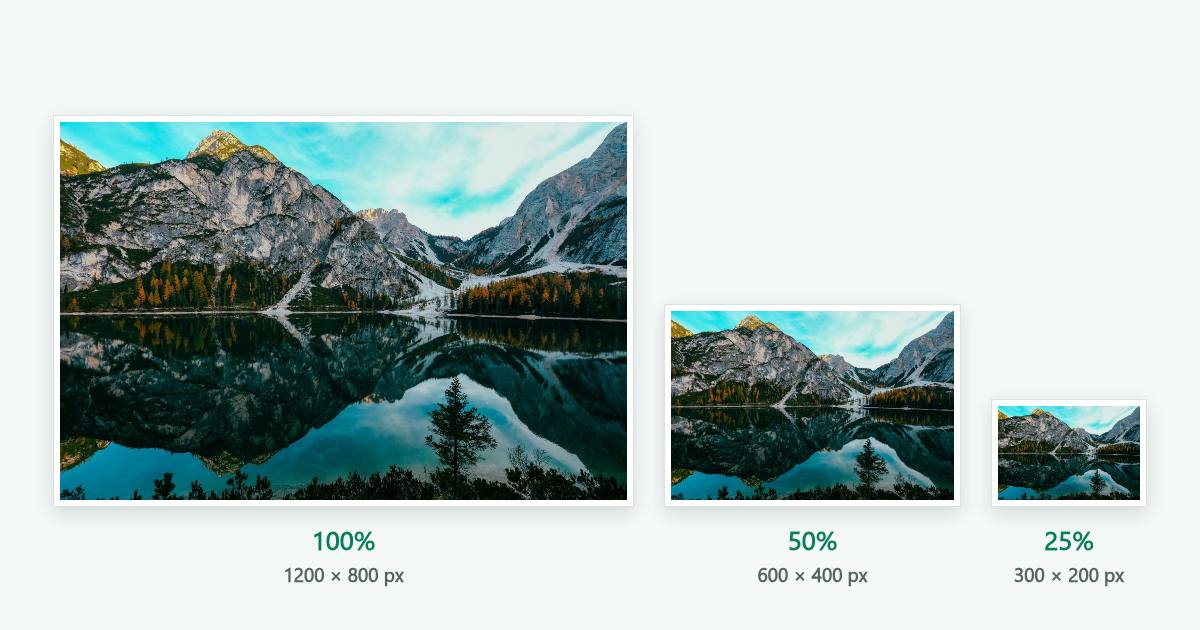
Each result below was made from the same settings you can pick in the tool. The labels show the real image sizes.
Halve a photo for an email
Percentage · 50%
A 1200 × 800 landscape becomes 600 × 400. That's wide enough for most email templates, which are commonly around 600 px across, and the file comes out at roughly a quarter of the original size.
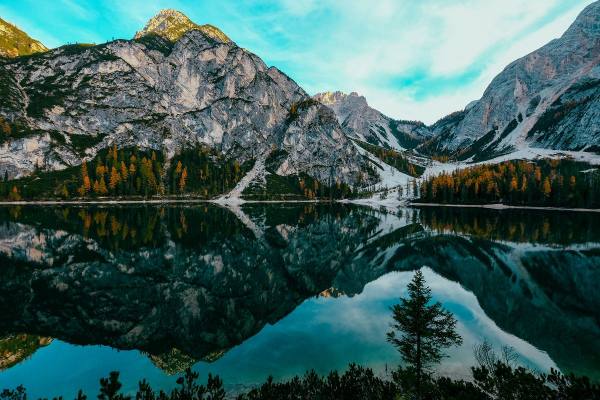
Fit a portrait into a 640 px tall space
Pixels · height 640 · ratio locked
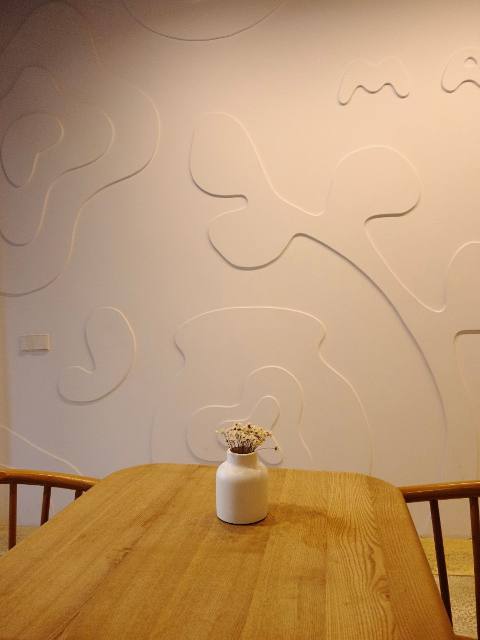
The vase photo is 900 × 1200. Typing 640 into the height box sets the width to 480 on its own, because 900 ÷ 1200 × 640 = 480. The photo keeps its 3:4 shape.
What an unlocked ratio does
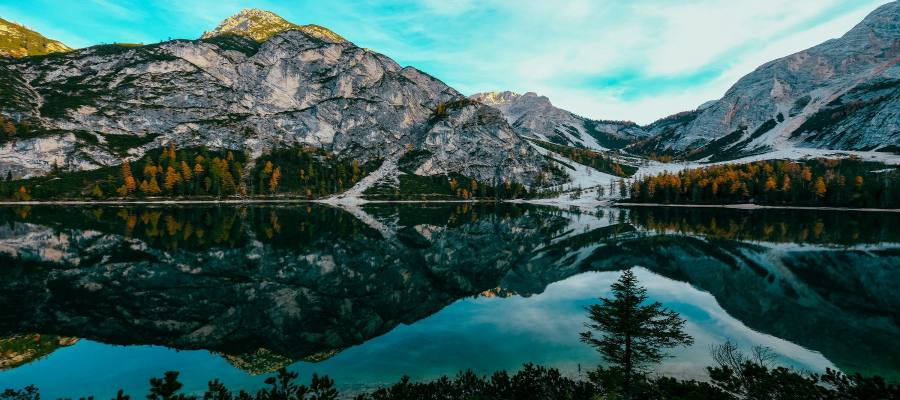
Pixels · 900 × 400 · ratio unlocked
Turn the lock off, type 900 × 400, and the 3:2 photo is squeezed into a 9:4 frame. The mountains look flatter. Sometimes that's the goal, and the Image Stretcher is built for it. If it isn't, keep the lock on.
How to Resize an Image Without Losing Quality
Making an image smaller is safe. Each new pixel is an average of several old ones, so edges stay clean. For big reductions, this tool shrinks in steps of half at a time rather than all at once, which avoids the jagged lines and shimmering patterns a single large jump can leave.
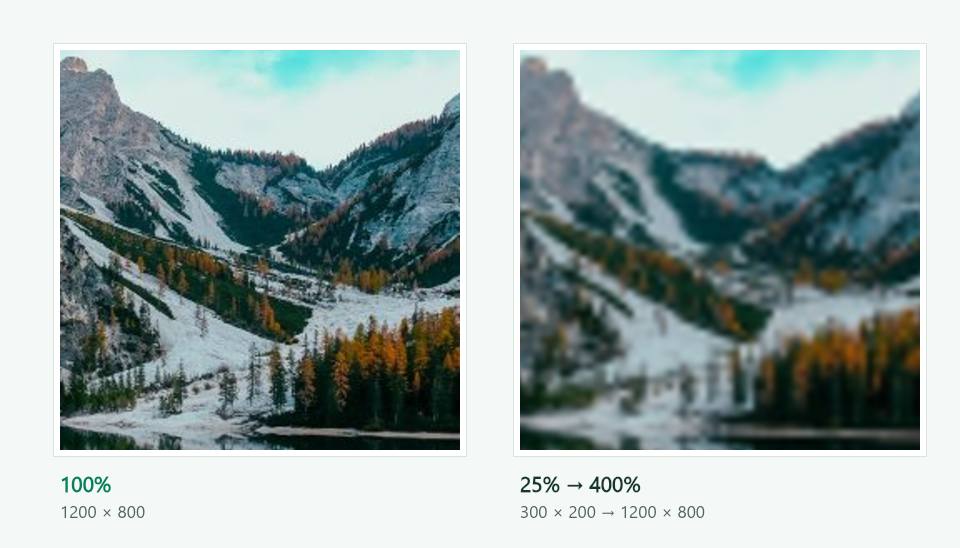
Making an image bigger is different. A resizer can add pixels, but it can't add detail the camera never captured. Each new pixel is a blend of its neighbors, so fine texture turns soft, as the enlarged panel below shows. A 2× enlargement usually looks acceptable. At 4× the blur is obvious.
The file format matters too. PNG never throws detail away. JPEG and WebP throw away some each time you save, and the quality slider controls how much.
Five habits that keep resized images sharp
- Always start from the biggest version you have. This tool renders from your original every time, so changing the size ten times doesn't stack up losses.
- Resize once, to the size you'll actually use. Shrinking to 800 px and later enlarging to 1200 px loses detail you can't get back.
- For JPEG and WebP, a quality of 80 to 90 is hard to tell apart from 100 at normal viewing size, and the file is much smaller.
- Use PNG for screenshots, logos and text. JPEG blurs sharp edges and adds speckles around letters.
- If a site shows the image at 800 px wide, uploading 1600 px covers high-density screens. Going bigger than that only adds weight.
Common Image Sizes in Pixels
Sizes that come up again and again. The presets in the tool cover several of them.
| Use | Size | Shape |
|---|---|---|
| Full HD screen, slides, wallpapers | 1920 × 1080 | 16:9 |
| HD video frame, YouTube thumbnail | 1280 × 720 | 16:9 |
| Link preview (Open Graph) | 1200 × 630 | 1.91:1 |
| Square social post | 1080 × 1080 | 1:1 |
| Email body image | 600 wide | Any |
| Older web layouts, small forms | 800 × 600 | 4:3 |
Meta recommends link images of at least 1200 × 630 pixels, per its sharing guide for webmasters. For every platform size in one place, and crop or fit options for each, use Resize Image for Social Media.
Which Format to Save Your Resized Image In
JPG
The usual choice for photos. Files are small and every app opens them. JPG has no transparency, so clear areas turn white.
PNG
PNG loses nothing and keeps transparency, so text and thin lines stay crisp. A photo saved as PNG is often three to five times larger than the same photo as JPG.
WebP
WebP usually gives the smallest file for the same look, and it supports transparency. Every current browser displays it, but some older upload forms still refuse it.
Crop, Fit or Stretch: When a Resizer Isn't Enough
An image resizer changes the size and keeps the shape. When the shape itself has to change, or the limit is in kilobytes, another tool on this site does it better.
The limit is in KB or MB
Pixel size and file size are related but not the same. For a limit like "under 100 KB", use Resize Image to KB. It adjusts the compression until the file fits.
You need exact dimensions in a different shape
To make a photo wider or taller on purpose, use the Image Stretcher. It can also crop to fill or fit with a border.
Nothing may be cut off
Add Padding to Image adds space around the photo to reach a new shape, such as a square, without cropping or distorting it.
You need a different file type
The Image Converter turns HEIC, AVIF, WebP and more into JPG or PNG, keeping the pixel size as it is.
Frequently asked questions
Is this image resizer free?
Yes. There's no signup, no watermark and no daily limit. The tool runs in your browser, so there are no server costs to pass on.
Are my photos uploaded anywhere?
No. The file is read, resized and saved by your own browser. Nothing is sent to a server, and closing the tab clears it.
How do I resize an image without losing quality?
Keep the aspect ratio locked, make the image smaller rather than larger, and save as PNG or as JPG/WebP with a quality of 85 or more.
Shrinking always loses pixels, but it doesn't lose visible sharpness at the new size. Enlarging is where quality really suffers.
How do I resize an image to a specific size in pixels?
Choose Pixels and type the width or height you need. With the ratio locked, the other side is worked out for you.
If both numbers are fixed and don't match your photo's shape, unlock the ratio to stretch it, or use the Image Stretcher to crop or fit it instead.
How do I resize an image by percentage?
Switch to Percentage and drag the slider or tap a quick scale such as 50%. Each side is multiplied by that amount, so 50% of 3000 × 2000 is 1500 × 1000.
Does resizing an image reduce its file size?
Yes, making it smaller almost always does, because there are fewer pixels to store. Halving both sides usually cuts the file to about a quarter.
The tool measures the real file size before you download. If you need to reach an exact limit in KB, use Resize Image to KB.
Can I make a small image bigger?
Yes, up to 4096 px on each side. The result will have the size you asked for, but it will look softer, because enlarging spreads the same detail over more pixels. Up to about 2× usually looks fine.
What does "lock aspect ratio" mean?
The aspect ratio is the image's shape, its width compared with its height. When it's locked, changing one side changes the other in proportion, so a 3:2 photo stays 3:2 and nothing looks squashed.
Which formats can I resize?
You can open JPG, PNG and WebP files and save the result as any of the three. For HEIC or AVIF photos, convert them first with the Image Converter.
Does it work on a phone?
Yes. It runs in mobile Safari and Chrome with no app to install. Very large photos take a moment longer on a phone, and the tool shows when it's working.