

Color Picker from Image
Click any spot on a photo and copy its color code in HEX, RGB, HSL, HSB, CMYK or OKLCH. In Chrome and Edge you can also pick a color from anywhere on your screen. The tool lists the main colors of the picture too, and shows how readable black or white text is on each one.
Free to use · No signup · No upload
Step 1: Add your image
JPG, PNG or WebP. It stays on your device.
Drop an image here
Then click any spot to get its color code. Nothing is uploaded.
A sample photo is open so you can try the tool right away. Add your own image to replace it. Images are opened in your browser and never uploaded.
What an Image Color Picker Does
A photo is a grid of pixels, and every pixel holds one color as three numbers: how much red, green and blue it contains. This tool reads those numbers at the spot you click and writes them in the formats designers and developers use.
It helps when you have the picture but not the color code. Matching a logo, copying a shade from a screenshot of a site, or blending a product photo into a page background all come down to the same step: point at the color and copy the code.
A magnifier shows the exact pixels under your cursor, so you can aim at a single pixel instead of a blur. The color you are pointing at appears as you move, and a click picks it and marks the spot on the photo.
| Format | Example | Where it is used |
|---|---|---|
| HEX | #FF7D3D | CSS, design tools, brand guides |
| RGB | rgb(255, 125, 61) | CSS, code, image editors |
| HSL | hsl(20, 100%, 62%) | Making lighter or darker versions |
| HSB | hsb(20, 76%, 100%) | Design apps with HSB sliders |
| CMYK | cmyk(0%, 51%, 76%, 0%) | A starting point for print work |
| OKLCH | oklch(0.730 0.176 44) | Modern CSS, even-looking gradients |
The example is the orange card in the sample photo. Want to use a picked color as a border? Paste its HEX code into Add Padding to Image.
How to Pick a Color from an Image
- 1
Use the sample or add your image
A sample photo is already open. To use your own, choose a JPG, PNG or WebP file, drop it onto the tool, or paste a screenshot with Ctrl+V or Cmd+V.
- 2
Click the color you want
Move over the image to preview colors in the magnifier, then click or tap to pick one. The picked color is shown at once and marked on the photo. In Chrome or Edge you can also take a color from anywhere on your screen.
- 3
Copy the code
Press Copy next to HEX, RGB, HSL or OKLCH. Under the photo, a palette lists its main colors, and a click on any of them shows its codes too.
Features of the Color Picker
Each feature below works in your browser, with no signup. The figures use the sample photo and a second photo, and every number comes from their real pixels. Browsers decode JPEG slightly differently, so a code can differ from yours by a few steps.
Pick the exact pixel
Magnifier · exact pixel
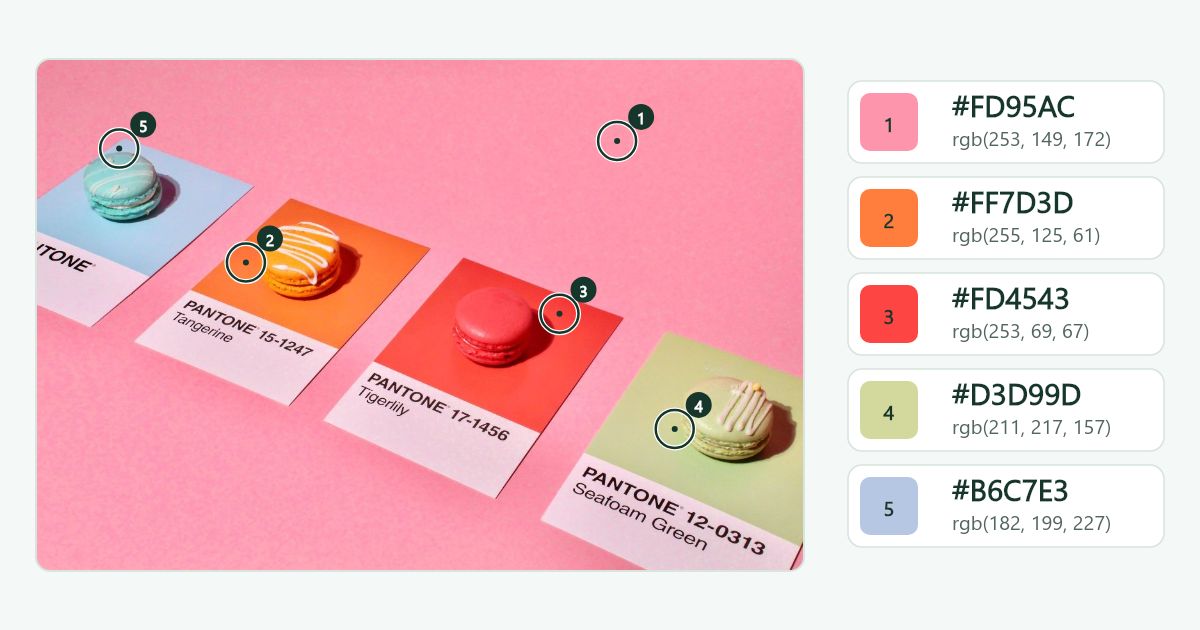
A magnifier follows your cursor and shows the pixels around it as large squares, with a red frame on the one a click will pick. The picked spot gets a marker filled with its own color, and the codes appear beside the photo. In the figure, each ring is one click: point 2, on the tangerine card, is #FF7D3D, which is rgb(255, 125, 61) or hsl(20, 100%, 62%). On a touch screen, tap the spot. A large photo is shown smaller than its real size, so a mouse can skip pixels. The arrow keys move exactly one pixel at a time, or ten with Shift, and the line under the photo shows the pixel position.
See the main colors automatically
2 to 12 colors
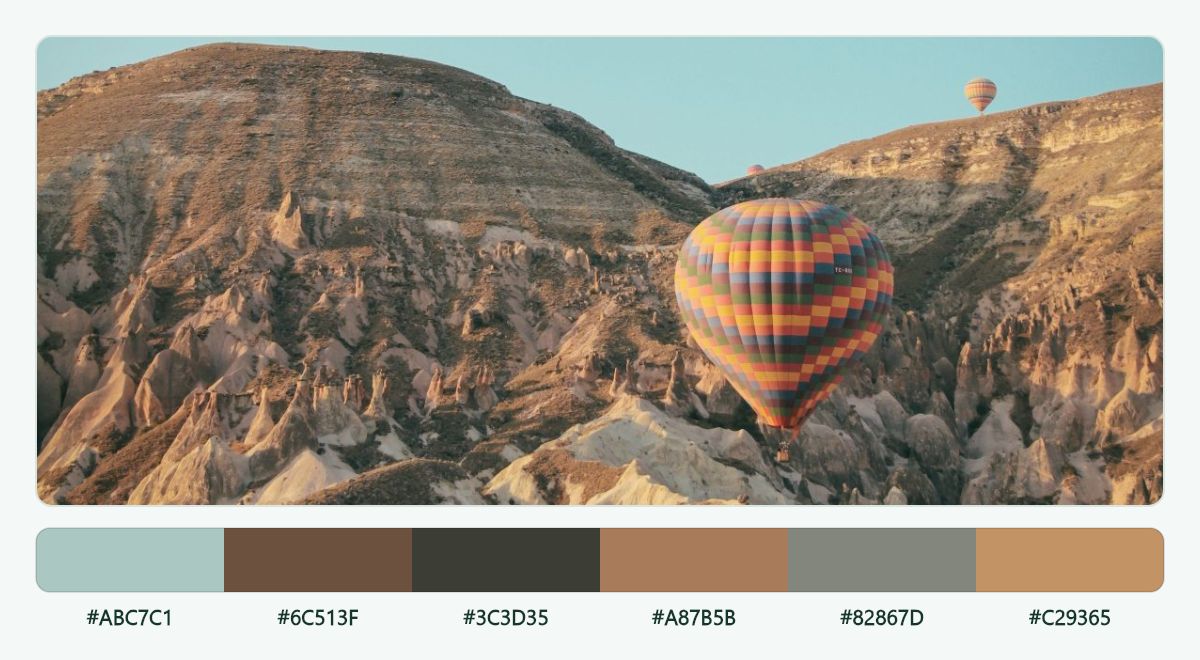
Every image gets a palette strip under it, built from its own pixels. Use − and + to show from 2 to 12 colors, click a segment to see its codes, or download the strip as a PNG. Here the pale teal sky takes the most room, about 34%, so #ABC7C1 leads the strip, followed by a dark brown (#6C513F, 21%), a near-black (#3C3D35, 17%) and three lighter earth tones. Hover a segment to see its share.
Check white and black text contrast
WCAG AA
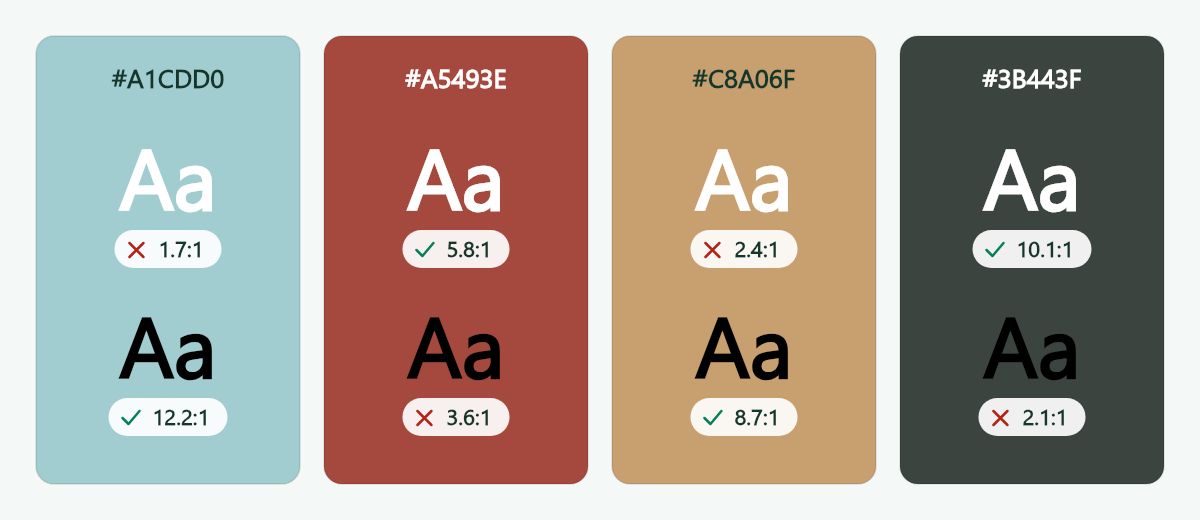
Every color shows its contrast with white and black text, marked as passing or not passing WCAG AA (4.5:1 for normal text). The tool tests white and black text only. The figure tests four exact pixels from the balloon photo. On the sky blue #A1CDD0, white scores 1.7:1 and black 12.2:1, so only black passes. The terracotta #A5493E is the reverse for normal text: 5.8:1 with white and 3.6:1 with black, which would still clear the 3:1 bar for large text. The shaded rock #3B443F passes with white at 10.1:1, and the sand #C8A06F passes with black at 8.7:1.
HEX · RGB · HSL · HSB · CMYK · OKLCH
Six color formats, one click each
Each format has its own Copy button, so you can paste a value straight into CSS, a design app or a brand guide. The tool also names the closest CSS color, such as coral or tomato, and says when your color is an exact match.
Chrome and Edge
Pick from anywhere on your screen
The eyedropper button takes a color from any open window, a website or another app included, not only from the image. Press Esc to cancel. Browsers without the feature, such as Firefox and Safari, show a short explanation instead of the button.
JPG · PNG · WebP · up to 20 MB
Start instantly, bring your own image
A sample photo is open when the page loads, with one color already picked. Replace it with Use your own image, a drop onto the tool or a pasted screenshot. Everything runs in your browser and nothing is uploaded.
Tips for Picking Better Colors
Aim for the middle of an area
Pixels along an edge are a blend of the two colors that meet there. Click well inside a surface, and use the magnifier to check that the red box sits on one even shade.
Start from the palette
The palette lists the colors that cover the most of the picture. Press + to split big areas into more shades, then click a segment to see its codes.
Use PNG for logos and flat artwork
JPEG compression smears color around sharp edges. A PNG export of a logo gives clean, exact codes.
Test the pick before you use it
Each pick shows its contrast with white and black text. Check it before you put text on that color.
Why a Picked Color Is Not Always the Color You Expected
Two spots that look the same can have different codes
JPEG compression nudges pixel values in small blocks, so an area that looks flat can vary by a few steps from one pixel to the next. If a code looks slightly off, click a pixel or two to the side and compare. Flat artwork saved as PNG gives the steadiest results.
Lighting changes the color in a photo
Shadows, highlights, white balance and the camera's own processing all change what a pixel holds. The tool reports the color as it appears in the photo, so a paint swatch or a fabric in a room will not match it exactly.
Colors are read as sRGB
sRGB is the standard for web colors. When an image carries a different color profile, the browser converts it as it opens the file, so a desktop app that shows the original profile may report slightly different numbers.
Where to Use a Color from an Image
Three common jobs, and what to copy for each.
HEX · RGB · OKLCH
Websites and CSS
Paste a HEX code straight into a stylesheet, as in color: #ff7d3d. RGB, HSL and OKLCH work the same way inside rgb(), hsl() and oklch().
Click a color in the palette under the photo to get its code in the same six formats, ready to paste.
HEX
Brand and design work
When the brand guide is missing, pick the colors from a logo file or a screenshot of the site. Sharp PNG logos give the cleanest results.
Use Download palette PNG to keep the main colors of a reference photo as a strip you can share with a client or drop into a mood board.
WCAG
Readable text on a color
The contrast box shows the ratio for white and for black text on the picked color. WCAG level AA asks for at least 4.5:1 for normal text and 3:1 for large text.
The tangerine card scores 2.5:1 with white text and 8.3:1 with black, so black is the safe choice there.
Contrast ratios come from the picked color alone. If text sits on a photo and not on a flat fill, check the spot behind the text as well.
Frequently asked questions
How do I pick a color from an image?
Upload the image, move your cursor over it, and click the spot you want. On a phone, tap it. The HEX, RGB, HSL and OKLCH codes for that spot appear beside the image with a Copy button for each one.
How do I find the hex code of a color in a photo?
Pick the color as described above and press Copy next to HEX. A hex code is a hash sign followed by six characters, two each for red, green and blue, such as #FF7D3D.
What is the difference between HEX, RGB, HSL and OKLCH?
They describe the same color in different ways. HEX and RGB both give the amounts of red, green and blue, in base 16 and base 10. HSL gives hue, saturation and lightness, which makes it easy to build a lighter or darker version of a color.
OKLCH is a newer notation that CSS supports in current versions of the major browsers. Its lightness follows how bright a color looks, which keeps gradients and shade scales even.
Why is the code different from the one another tool gave me?
The usual reasons are the exact pixel you clicked and the color profile. Photos vary slightly from pixel to pixel, so a click one pixel over can give a different code.
A photo with a color profile other than sRGB can also read differently, because this tool reads the colors as the browser shows them.
How does the tool find the main colors of an image?
It reads the pixels of your picture, groups similar shades together and splits those groups into the number of colors you choose. Each color is the average of its group, and its percentage is the share of pixels closest to it. A very large picture is read on a regular grid of pixels, which gives the same palette.
A large flat area, such as a sky or a backdrop, gets its own color but does not use up the whole palette, so smaller accents still show up.
What does Pick from anywhere on screen do?
It uses your browser's built-in eyedropper. Press the button, then click any color on your screen, in any window, not only in the uploaded image. Press Esc to cancel.
The picked color is shown right away with its codes. Chrome and Edge on a computer offer this. Firefox and Safari do not, so there the page explains that instead of showing the button.
What is the closest CSS name?
CSS has a list of named colors, such as tomato, coral and rebeccapurple. The tool finds the one that looks closest to your pick and shows it. The name is a CSS keyword, so it is the same in every language, and it only matches exactly when your color is one of the named ones.
What image types can I use?
JPG, PNG and WebP files up to 20 MB. A PNG or WebP with transparency works too. If you pick a see-through pixel, the tool tells you and shows the color without its transparency.
Is this color picker free?
Yes. There is no signup, no watermark and no limit on how many colors you pick. Images up to 20 MB open in your browser, and nothing is uploaded.
Can I use it on a phone or tablet?
Yes. Tap the image to pick a color. The magnifier is for a mouse, so on a touch screen a marker shows the spot you tapped and the codes appear right after the image.
Can I pick a color from a screenshot or a website?
Yes, in two ways. Paste a screenshot with Ctrl+V or Cmd+V, or upload the screenshot file, then click the color. In Chrome or Edge you can also use Pick from anywhere on screen to take a color from any open window, a website included.
How are the HSB and CMYK values calculated?
Both come from the sRGB color by arithmetic. HSB, also written HSV, uses the same hue as HSL, with saturation and brightness measured against the brightest channel.
CMYK is a plain conversion, not a print profile. A printer or press maps the same color through its own profile, so its percentages can differ. Treat these values as a starting point and check them against a proof.
Why is there already an image on the page?
A sample photo opens first so you can see how the tool works before you add anything. Add your own with Use your own image, drop it onto the tool or paste it, and it replaces the sample.
Are my images uploaded anywhere?
No. Your own browser opens the image and reads its pixels. Nothing is sent to a server, and nothing is kept after you close the tab.