

Image Stretcher – Stretch an Image Online for Free
Photo Stretcher lets you set the width and height independently to stretch a photo horizontally, vertically, or to an exact pixel size. Preview the change, then download the result — it all runs in your browser.
- Free to use
- No signup
- No watermark
Image editor
Drop a JPG, PNG, or WebP here
or choose a file from your device
Stretching can change proportions. Choose Fit to preserve the whole photo's shape inside a new canvas.
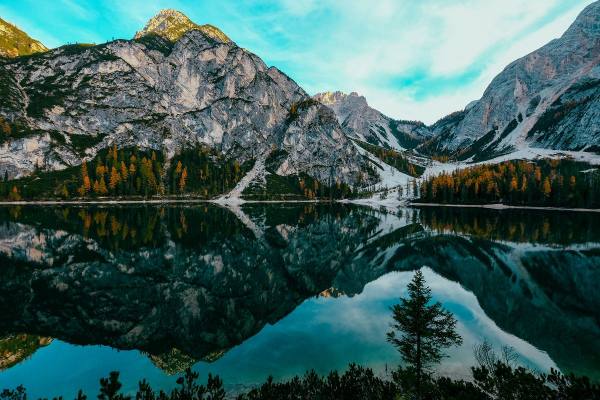
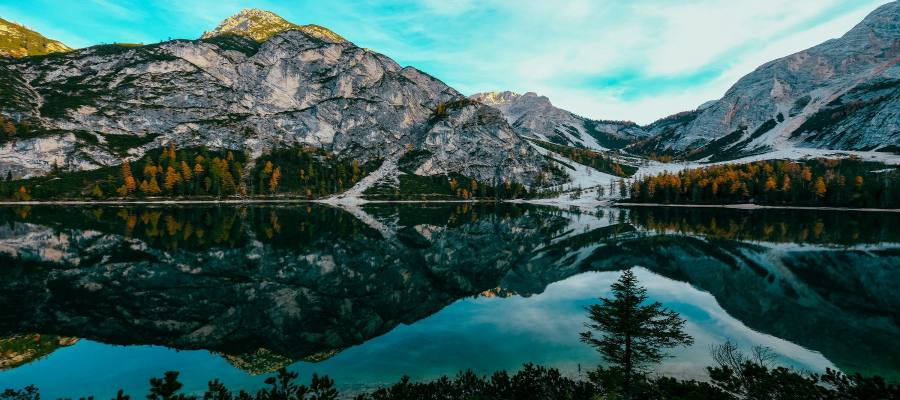
The same photo with its width increased by 50% and its height unchanged. Stretching reshapes the existing scene — it does not add new scenery.
Your photo is processed in your browser. It is never uploaded to a server.
Why use this image stretcher
Width and height, set separately
Type any width and height. Stretch a photo horizontally, vertically, or to an exact pixel size.
Four ways to change shape
Choose Stretch, Resize, Fit or Crop to decide how the picture meets its new size.
Preview before you save
See the stretched result first, so you can tell how far it can go before it looks distorted.
Your photos stay on your device
Everything runs in your browser. Nothing is uploaded, stored or sent anywhere.
Free, with no watermark
No account and no sign-up, and nothing is stamped on the image you download.
Works on phone and desktop
Use it in any modern browser on Android, iPhone, Windows or Mac, with nothing to install.
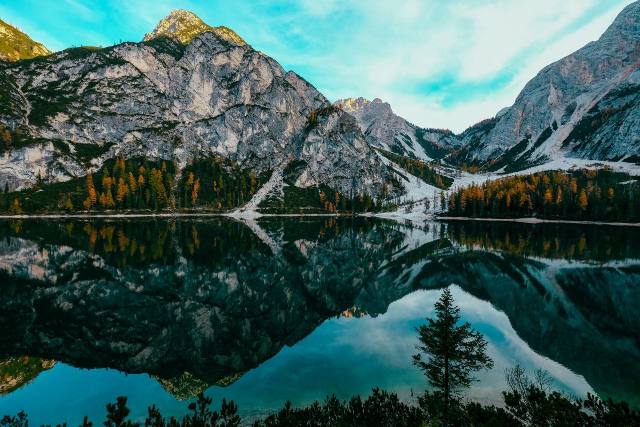
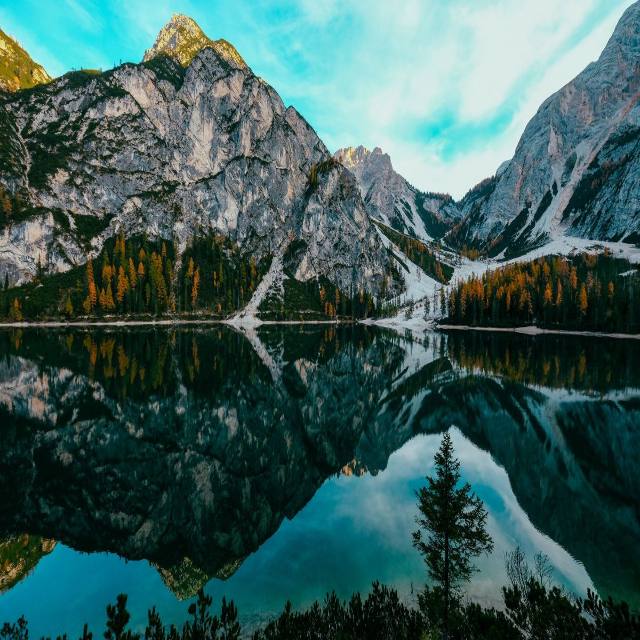
One photo, one dimension changed: the height goes from 800 to 1200px while the width stays at 1200px. Nothing is cropped away.
What Is an Image Stretcher?
An image stretcher is a tool that changes an image's width and height independently. You can make a photo wider, taller, or match specific pixel dimensions.
Stretching keeps the full scene visible while reshaping its contents. For example, increasing only the width makes everything in the picture wider. Increasing only the height makes objects appear taller.
Unlike cropping, stretching does not trim the edges to achieve a new shape. If you want to preserve the original proportions, choose Resize or Fit instead.
How to Stretch an Image Online
- 1
Open Your Photo
Choose an image from your device, or load a sample to explore the editor. Check the original dimensions before making changes.
- 2
Choose Stretch and Set Your Dimensions
Enter your target width and height in pixels. Increase only the width to stretch an image horizontally, or only the height to stretch it vertically. Change both values when you need a specific output size.
- 3
Preview and Download
Check faces, lettering, and straight edges to judge the effect. Adjust the dimensions until the result looks right, choose an available download format, and save your edited image.
Stretch an Image Horizontally to Make It Wider
A horizontal stretch increases an image's width while keeping its height unchanged. The full photo spreads across the new width, including the objects inside it.
For example, changing a 1200 × 800 image to 1800 × 800 makes it 50% wider. A landscape looks more spread out, while circular objects become wider ovals.
This effect can work well for stretched memes, abstract graphics, and textured backgrounds where changing proportions is part of the design.
Need more space beside a subject without widening it? Choose Fit to add padding. If you need new scenery beyond the original photograph, that requires an image-expansion editor.
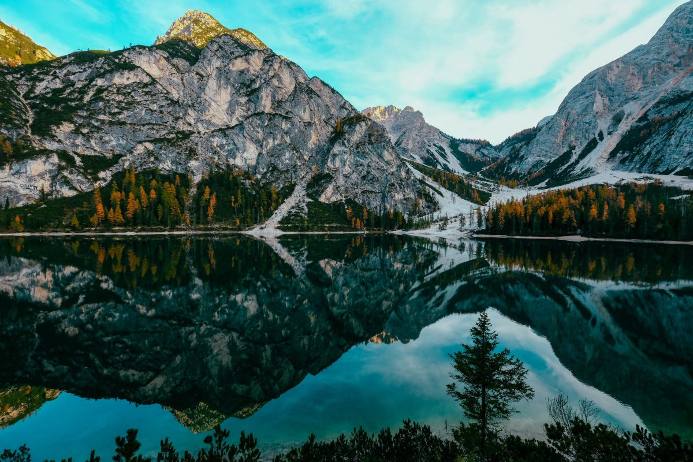
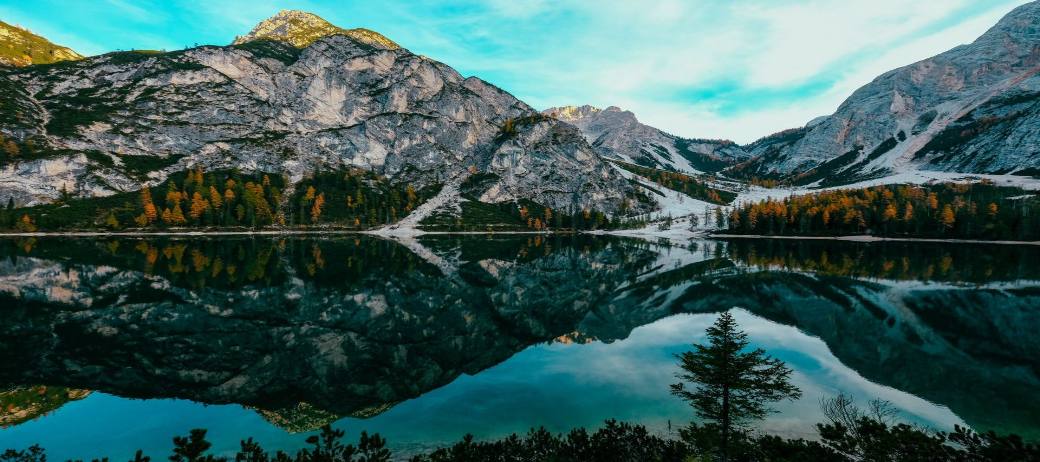
Same landscape, 50% wider. Height stays unchanged.
Stretch an Image Vertically for More Height
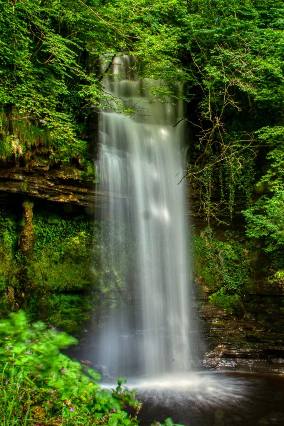
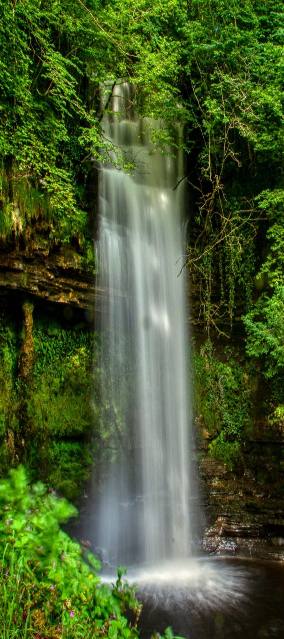
Same waterfall, 50% taller. Width stays unchanged.
A vertical stretch increases height while leaving width unchanged. It lengthens the existing content from top to bottom.
Changing an 800 × 1200 photo to 800 × 1800 makes it 50% taller. In the waterfall example, the water, rocks, and surrounding trees all become taller together.
Start with a small adjustment for a subtle effect, or increase the height further for a deliberately exaggerated image. Stretching reshapes the existing scene; it does not create additional content above or below it.
One Image, Four Ways to Change Its Size
Stretch, Resize, Fit, and Crop solve different sizing problems. This tool stretches — it changes width and height independently — which is the right choice when you need exact dimensions and can accept changed proportions.
| Mode | What It Does | When to Use It |
|---|---|---|
| Stretch | Changes width and height independently, which can alter proportions. | When to Use It: Creating intentional distortion or filling exact dimensions when changed proportions are acceptable. |
| Resize | Scales width and height together while preserving the original aspect ratio. | When to Use It: Making an image larger or smaller without changing its shape. |
| Fit | Places the whole image inside a target canvas, adding padding where needed. | When to Use It: Keeping the complete subject visible in its original proportions. |
| Crop | Fills a target canvas while removing image areas outside the frame. | When to Use It: Filling a layout when trimming the edges is acceptable. |
An aspect ratio describes width compared with height. A 1200 × 800 photo has a 3:2 ratio. Resizing it to 1800 × 1200 keeps that shape.
To turn the same image into a square, this tool stretches it to those exact dimensions. Padding it with Fit or trimming it with Crop are different operations, explained in the guide below.
For a product photo, know that stretching can make the product appear wider or taller than it really is — worth a look before you publish.
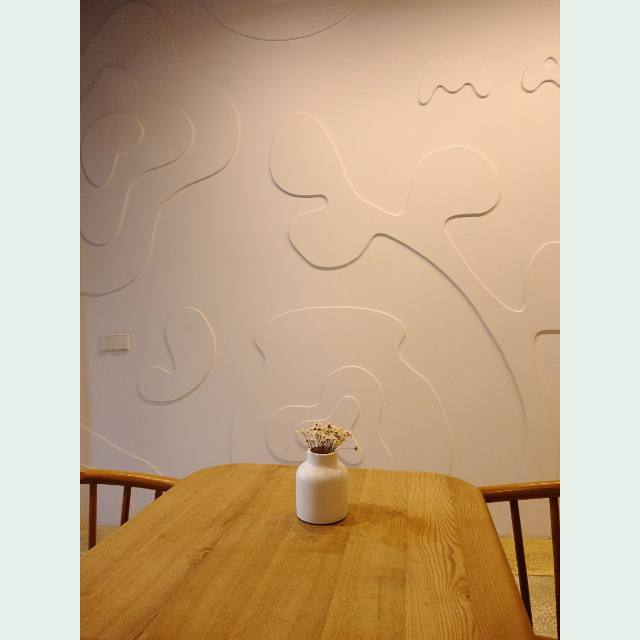
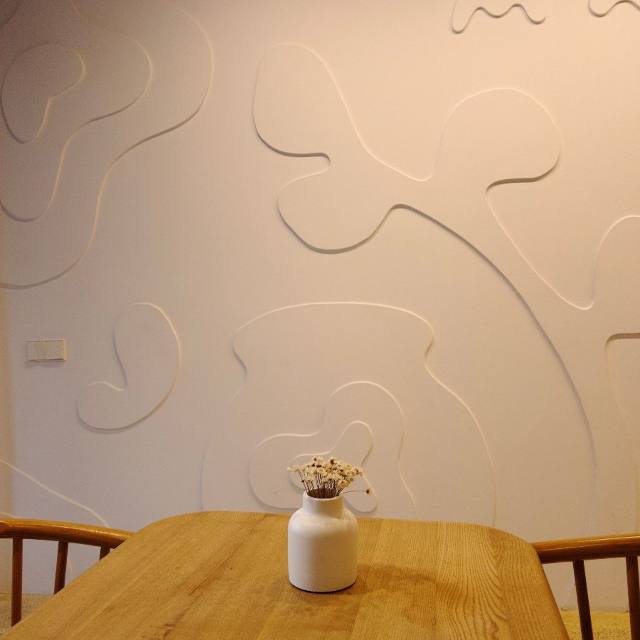
One vase photo, two square results: Fit keeps the full image with padding; Crop fills the frame and trims the edges.
Choose the Dimensions Your Design Needs
Enter custom dimensions or use an available preset as a starting point. These examples describe common canvas shapes, rather than guaranteed requirements for a particular platform.
| Canvas Shape | Example Dimensions | Possible Uses |
|---|---|---|
| Square — 1:1 | 1080 × 1080 px | Square graphics and product cards |
| Portrait — 4:5 | 1080 × 1350 px | Portrait layouts and taller cards |
| Widescreen — 16:9 | 1920 × 1080 px | Presentation slides and wide backgrounds |
| Vertical — 9:16 | 1080 × 1920 px | Vertical graphics and phone-sized layouts |
Check your destination's requirements before downloading. The selected mode determines how your photo fills the canvas, so review the preview after changing the dimensions.
An Online Photo Stretcher for Creative Edits
Create Stretched Memes
Make a reaction image wider or stretch a still photo vertically for an exaggerated effect. Adjust the dimensions until the distortion matches the joke.
Stretch affects the whole image, including any existing lettering. If you want a stretched photo with normal-looking text, add the caption afterward in a separate text editor.
Reshape Textures and Backgrounds
Change the proportions of fabric textures, abstract patterns, or landscapes to suit a wider or taller composition.
Check repeating details, straight lines, and recognizable objects before using the result. Some backgrounds tolerate stretching better than others.
Prepare Images for Cards, Slides, and Banners
Set the output dimensions your layout needs, then compare the available modes.
Stretch can suit graphics where altered proportions are intentional. For recognizable faces, logos, and products, Fit or Crop will often be the more appropriate choice.
Get a Cleaner Result
Start With a Clear Original
Use the highest-quality source you have. Enlarging a small or blurry image cannot recover detail that was missing from the original.
Make Proportion Changes Carefully
Strong stretching makes changes to faces, circles, text, and product edges easier to notice. Start with a modest adjustment and check the preview before increasing the effect.
Check the Final Display Size
An image that looks sharp in a small preview may appear softer when displayed much larger. Review the downloaded result at the size you plan to use.
Choose the Right Download Format
PNG supports transparency and works well for graphics with sharp edges. JPEG can suit photographs, but uses lossy compression and does not preserve transparent areas.
Edit Your Photo on Your Device
The image-editing process runs in your browser. Your selected photo does not need to be sent to a server for stretching, and downloading saves a separate edited file.
Large images may take longer to process, especially on a phone. If an edit cannot finish, try a smaller source image or lower output dimensions.
Read our Privacy Policy for information about other data the website may collect.
Frequently Asked Questions
Is Photo Stretcher free to use?
Yes. You can edit and download an image without paying, creating an account, or receiving a watermarked result.
Can I stretch an image without cropping it?
Yes. Stretch keeps the full scene visible while mapping it to your chosen dimensions. Its proportions can change.
Choose Fit if you want the whole image to remain undistorted and can accept padding around it.
Can I stretch an image without distortion or quality loss?
Changing the aspect ratio through stretching changes the shape of objects. Enlarging the image can also make it softer.
Use Resize or Fit to preserve proportions. Neither mode can restore detail missing from the source image.
Can I change only the width or the height?
Yes. In Stretch mode, increase the width while keeping the height unchanged to make the image wider. Increase the height while keeping the width unchanged to make it taller.
The objects inside the photo stretch along the same direction.
Can I stretch a photo to 1920 × 1080?
Yes. Select Stretch, enter 1920 for width and 1080 for height, then check the preview.
If the original image is not 16:9, its proportions will change. Choose Fit to preserve the complete image with padding, or Crop to fill the frame by trimming the edges.
Can I stretch a PNG and keep its transparent background?
Yes. Open the PNG and download the edited result as PNG.
JPEG does not support transparency. Transparent areas need a solid background when exporting to JPEG.
Does this tool add new background content with AI?
No. Stretching reshapes existing image content. Fit can add padding, but does not generate new objects or extend the original scenery.
Can I fix an image that already looks stretched?
If you know its original proportions, adjusting the width or height may correct its shape.
It cannot fully recover detail lost through earlier resizing or compression. Starting again from the original file usually gives a better result.
Does changing the dimensions control the file size in KB?
Not exactly. Width and height describe pixels. File size also depends on the image content, format, and compression.
Two images with the same dimensions can have different file sizes. To bring a file under a limit such as 100 KB, use Resize Image to KB instead.
What Else You Can Do With Your Image
Stretching reshapes a photo. When you need something else — a resize that keeps the shape, a smaller file, a different format, or a size a platform asks for — these tools run the same way, in your browser.
- Image ResizerChange width and height in px or %
- Aspect Ratio CalculatorSimplify a ratio, or solve a missing side
- Resize Image to KBHit an exact file-size limit in KB
- Add Padding to ImageAdd space around a photo without cropping
- Resize Image for Social MediaInstagram, TikTok, YouTube sizes in a click
- Image ConverterConvert to JPG, PNG, WebP, PDF and more
- Color Picker from ImageGet HEX, RGB and HSL codes from any photo
- Black and White Image ConverterTurn color photos into grayscale or B&W
Latest Guides
Short, practical guides on changing an image's size — in pixels or in kilobytes.
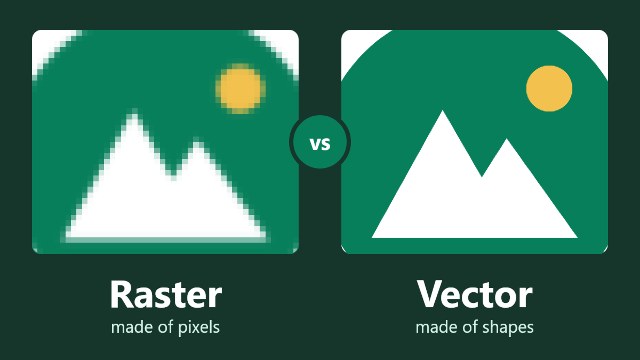 Image formats
Vector vs Raster Images: Which Should You Use?
What vector and raster images are, what happens when you enlarge each one, which has the smaller file, and which to use for logos, photos, forms and print.
Read the post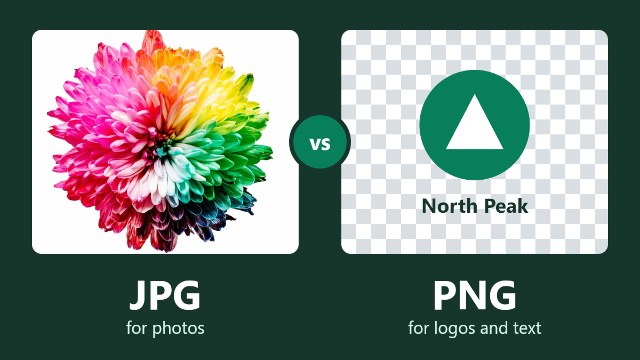 Image formats
PNG vs JPG: Which Should You Use?
When to use PNG and when to use JPG, with measured file sizes for photos and graphics, what each format does to quality, and what happens when you save again.
Read the post File size
Why Is My Image File Size So Large? 6 Causes and Fixes
The six usual reasons an image file is so large, what each one costs on the same test photo, and how to fix the one that applies to you.
Read the post
Ready to Give Your Photo a New Shape?
Open an image, set your dimensions, and preview the result. Try a sample first to see how each mode changes the same photo.