

How to Make a Photo Black and White Without Losing the Contrast
Quick ways to make a photo black and white in a browser, on iPhone, Windows, Mac and Photoshop, why some colors turn the same gray, and what the conversion does to file size.
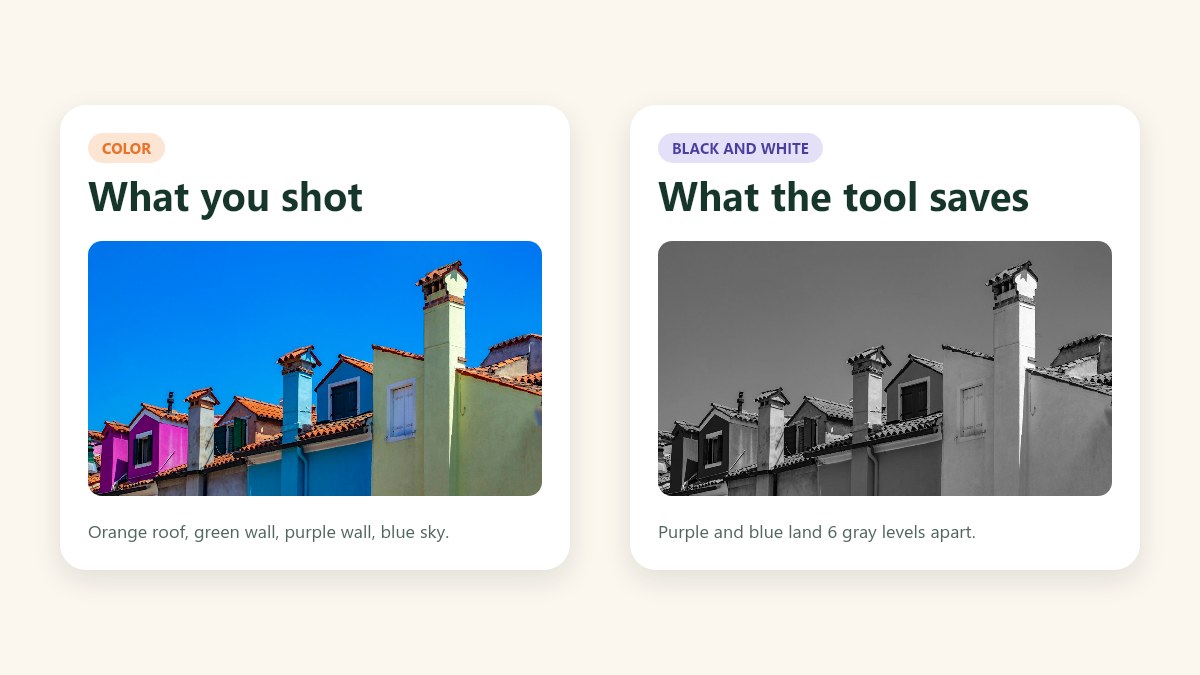
To make a photo black and white, drop its color information and keep only how bright each pixel is. You can do that in a browser, with a filter on your phone, or with a saturation slider on your computer, and each takes under a minute. Whether the result looks good depends on how the software turns each color into a gray, because some very different colors come out as almost the same gray.
This guide gives the quick ways first, then explains that gray problem with numbers from a real photo. After that it covers how to keep the contrast, how to choose between grayscale and pure black and white, and what the conversion does to your file size.
The Short Answer
Open the photo in any editor that can remove color and apply it. If you have no editor, the black and white image converter does it in your browser, and the photo never leaves your device. Whichever method you pick, save the result as a new file so the color original stays safe.
| Method | Where it works | How much control | Best for |
|---|---|---|---|
| Browser converter | Any phone or computer with a browser | Grayscale, or pure black and white with a threshold slider | A quick one-off, no install, no account |
| iPhone Photos filters | iPhone and iPad | Pick a filter and an intensity | Quick edits on a phone |
| Windows Photos | Windows | One color slider | Fast desktop edits |
| Mac Preview | Mac | One saturation slider | Fast desktop edits |
| Photoshop adjustment layer | Windows and Mac | Sliders for each color | Photos where the contrast matters |
How to Make a Photo Black and White in Your Browser
The converter runs on the photo inside your browser tab, so there is no upload and no waiting for a server. It takes JPG, PNG and WebP files. Here is the whole process, which I ran end to end on the sample photos for this guide.
- Open the black and white image converter and drag in a photo, or choose one from your device.
- Leave the mode on Grayscale. It keeps every shade of gray between black and white.
- Press Convert to Black and White. The Download button stays locked until you do, and the result appears next to the original.
- Press Download PNG, or open the arrow beside it and pick JPEG or WebP first. The file is saved under your original name with -black-and-white added.
The result keeps the photo's exact size. My 1200 × 675 rooftop photo came out as 1200 × 675, and the original file was not touched. A transparent PNG stays transparent: in my test, the empty areas of a 1000 × 1000 PNG were still empty after conversion. The file-size section below explains which download format to pick.
How to Make a Photo Black and White on iPhone, Windows and Mac
Most devices have a built-in way. The menus move around between versions, so treat these as the usual route and look for the same words in your version.
- On an iPhone or iPad, open the photo in Photos, tap Edit, then the Filters icon. The black and white filters are Mono, Silvertone and Noir. Each has a slider for its strength, and Noir has the most contrast of the three. Tap Done to save.
- On Windows, open the photo in the Photos app and choose Edit. Drag the Color slider on the Adjust tab all the way to the left, or pick a black and white preset from the Filter panel if your version has one. Then choose Save a copy so the color file stays as it was.
- On a Mac, open the photo in Preview, choose Tools, then Adjust Color, and drag Saturation to zero. Use Export or Duplicate to keep the original.
- On Android, open the photo in Google Photos or your Gallery app, tap Edit, and pick a monochrome or black and white filter. Choose Save copy so the color original stays as it was. Snapseed also has a Black & White tool.
- In Photoshop, add a Black & White adjustment layer from the Layers panel and move its sliders. Each slider changes how bright one color turns out, which is how you fix a flat result.
Setting saturation to zero is the simplest method and works almost everywhere, but it gives you the least say in how colors turn into grays.
Why Some Colors Turn the Same Gray
A gray is a single brightness, but a color has three channels: red, green and blue. To turn three numbers into one, software has to decide how much each channel counts. The simplest rule is a plain average, and it treats all three equally. Your eyes do not. Green looks far brighter to us than blue at the same strength, so a plain average makes blue too bright and green too dark.
The converter uses the Rec. 709 weights that screens and video use: 21.26% red, 71.52% green and 7.22% blue. They come from the HDTV standard, ITU-R BT.709, and other standards use other numbers. For three pure colors at full strength, the two rules give very different answers.
| Pure color | Plain average | Converter (Rec. 709 weights) |
|---|---|---|
| Red (255, 0, 0) | 85 | 54 |
| Green (0, 255, 0) | 85 | 182 |
| Blue (0, 0, 255) | 85 | 18 |
Under a plain average, red, green and blue all come out as the same mid-gray, 85. Under the weighted rule, green is about ten times brighter than blue, which matches how it looks. Different editors weight the channels slightly differently, so the same photo can come out a few gray levels apart in different apps.
Weighting does not fix everything. Two colors that look nothing alike can still carry the same brightness, and then they merge. To see it, I measured four colors in a rooftop photo from Burano, Italy (photographed by Alessandro Ranica, via Unsplash), using a 24 × 24 pixel patch on each.
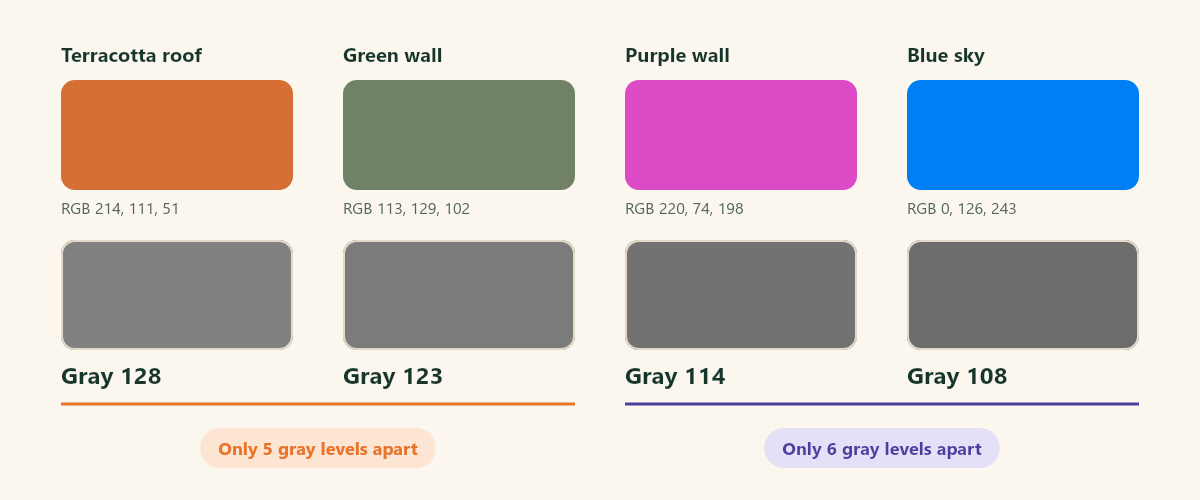
In color, the purple wall and the blue sky could hardly look more different. In grayscale they come out as 114 and 108 on a scale of 0 to 255, a difference you can barely see. The terracotta roof and the green wall land at 128 and 123. The photo has four distinct colors and only two distinct brightnesses, which is why the sky goes flat in the picture at the top of this page.
This is why many black and white conversions look flat. The photo used color, not brightness, to separate its parts, and the conversion removed the color. A color picker shows the RGB values of any two colors you want to compare, and the weights above turn them into grays.
Grayscale or Pure Black and White?
Most people who search for black and white mean grayscale: the look of a classic black and white photograph, with many shades between black and white. The converter also offers Pure Black and White, which has exactly two values. Every pixel is compared with a threshold from 1 to 254, and it becomes white if it is at or above that threshold and black if it is below.
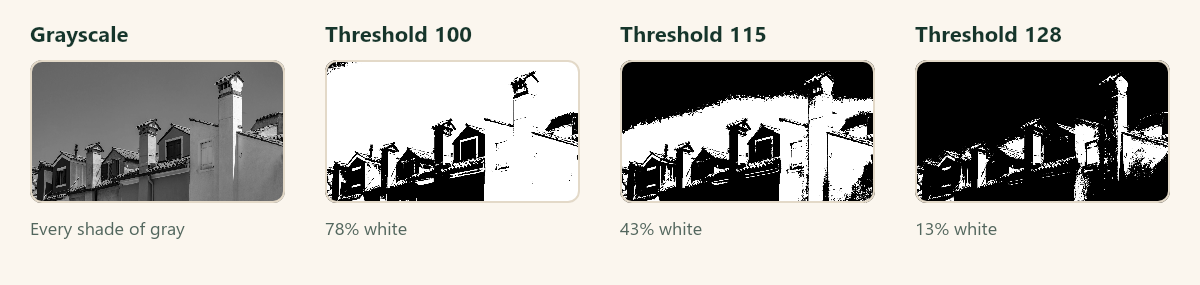
On my rooftop photo, a threshold of 100 left about 78% of the pixels white, 115 left about 43%, and 128 left about 13%. The sky sits near gray 108, so a small move of the slider flips the whole sky between white and black. In the saved files I checked, the 115 and 128 versions each held exactly two pixel values. Pure black and white throws away gradients, so photos of faces and landscapes usually look worse in it. It suits signatures, logos, line drawings and scanned text.
How to Keep the Contrast
A flat result almost always means the subject and its background have a similar brightness. A few habits help.
- Squint at the color photo before converting. If the subject and the background blur together when you do, they will blur together in gray too.
- Pick photos with a clear light and dark part, such as a bright subject against a shadow. Color contrast alone, like red against green, does not survive.
- If the grayscale looks muddy, adjust brightness and contrast in your editor afterwards. The browser converter has no contrast sliders, so it changes color only.
- For control over each color, use a tool with per-color sliders, such as Photoshop's Black & White adjustment. Moving the red slider up makes red things lighter, and moving it down makes them darker.
- For pure black and white, move the threshold until the part you care about holds its shape.
Does Black and White Make the File Smaller?
Not by default. Removing color does not shrink a photo the way people expect, and the download format matters more than the conversion. I downloaded the same results from the converter in each format and measured them.
| Photo | Original JPEG | Grayscale as PNG | Grayscale as JPEG | Pure black and white as PNG |
|---|---|---|---|---|
| Rooftops, 1200 × 675 | 118 KB | 627 KB | 117 KB | 76 KB |
The PNG is about five times bigger than the original JPEG, because PNG stores every pixel without discarding detail. The grayscale JPEG is about the same size as the original, 117 KB against 118 KB, because the converter saves at high quality and the original was already compressed, so dropping the color saves almost nothing. For a photo you plan to share or upload, choose JPEG in the download menu.
If a site or form asks for a file under a limit such as 200 KB, run the result through Resize Image to KB. The guides on reducing image size without losing quality and on photo upload errors cover the rest.
Common Mistakes
- Saving over the color original. Always save a copy, because you cannot turn a black and white photo back into color.
- Judging the result on a small preview. Subtle flatness shows up at full size, so zoom in before you decide.
- Using pure black and white on a portrait. Skin tones become blotches, and grayscale is almost always the better choice for people.
- Downloading a PNG when you meant to share a photo. A PNG can be five times the size of the JPEG.
- Expecting a filter to fix a photo that was flat in color. A conversion shows the brightness that was already there.
Frequently Asked Questions
What is the easiest way to make a photo black and white?
Use the filter in your phone's photo editor, or open the photo in a browser converter and press one button. Both take under a minute and keep the original safe if you save a copy.
Does making a photo black and white change its size?
The width and height stay exactly the same. The file size can change, depending on the format you save. A PNG is much larger than a JPEG for the same photo.
Can I turn a black and white photo back into color?
No. The color information is removed when the photo is converted, so keep the original. The converter saves a new file and leaves yours as it was.
Does a transparent PNG stay transparent?
Yes, if you save it as PNG or WebP. JPEG has no transparency, so the converter fills the empty areas with white when you choose it.
What is the difference between black and white and grayscale?
In everyday use they mean the same thing: a photo with no color. Strictly, grayscale has many shades of gray, and pure black and white has only black and white pixels.
Why does my black and white photo look flat?
The colors in the original probably have similar brightness, so they turned into similar grays. Adjust the contrast afterwards, or use an editor with a slider for each color.
Is it free to make a photo black and white online?
The converter on this site is free and runs in your browser, so there is no account and no upload.
The Short Version
Turning a photo black and white is the easy part. Zero the saturation or press one button, and save a copy. The result depends on how the colors map to grays, because colors with a similar brightness merge into one. Squint at the photo first, use grayscale for people and landscapes, and choose JPEG when you download if the file will be shared.

 Photo Stretcher
About Sabir Ali
Founder of Photo Stretcher
I built Photo Stretcher because resizing an image online usually means uploading it to a stranger's server and hoping for the best. Everything here runs in your browser instead: a stretcher, a resizer, a KB compressor, a converter. Your files never leave your device, and no pixel is invented by AI.
I review every guide on this site before it goes live. If a method stops working, I update the guide.