

Photo Upload Error: Why Forms Say "File Too Large" and How to Fix It
Why a form says "file too large" or "invalid size", which of four checks your photo failed, and how to get it under the form's limit.
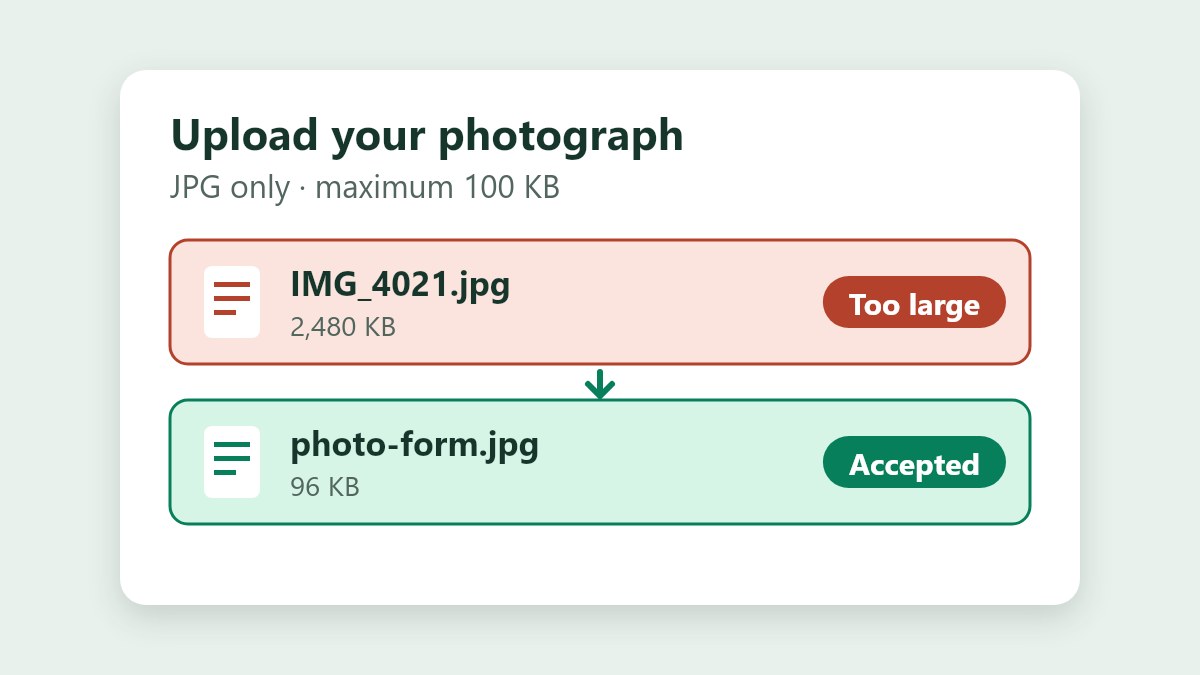
A photo upload error that says "file too large" has told you very little. It might mean the KB limit, the pixel size, the format or the shape of the photo, and one message often covers all four. This guide explains how to find out which check your photo failed, and how to reduce photo size for online forms, whether the limit is 100 KB or something else.
You'll need the original photo and about five minutes. Nothing is uploaded anywhere, because the tool runs in your browser.
Why You Get a Photo Upload Error
A form can reject the file on four counts:
- File size, meaning how much storage the file takes, in KB or MB.
- Pixel dimensions, meaning how many pixels wide and tall the picture is.
- Format. Usually JPG or JPEG, and some forms refuse PNG, WebP or HEIC.
- Shape. Square, or a particular width-to-height ratio.
Some portals also review the picture itself, for example for a plain background, a visible face and no filters. A person or a program checks that, and resizing doesn't fix it, so this guide sticks to the four file checks.
These are the messages you'll meet most often, and what they usually point to.
| What the form says | What it usually means | What to do |
|---|---|---|
| File too large, or exceeds the maximum size | The file has more KB than the limit | Compress it to the limit |
| Invalid dimensions, or image size not allowed | Width or height in pixels is outside the range | Resize to the stated pixel size |
| Invalid file type | The format isn't one the form accepts | Convert to JPG |
| Image too small | Below a minimum in KB or pixels | Use the original, not a compressed copy |
| Upload failed, no reason given | Can be a file name or format problem | Rename it to something plain and use .jpg |
Read the Requirement Before You Touch the Photo
Two numbers that look alike do different jobs. A limit written as 100 KB is about the file. A size written as 600 × 600 is about the picture. If the form gives both, you have to meet both.
Software doesn't agree on what a kilobyte is. Windows counts 1 KB as 1,024 bytes, while macOS and iOS count it as 1,000, and a form can use either. The same file can show different sizes on two devices. A file of 101,400 bytes is 99 KB on Windows but 101 KB on a Mac, and a form that counts in thousands sees it as over a 100 KB limit. Aim about 5% under the limit, so 95 KB for a limit of 100. Our Resize Image to KB tool counts 1 MB as 1,024 KB, so typing the limit in KB is the exact way to use it.
If the form asks for a photo "35 × 45 mm" or "2 × 2 inches", that's a print size. To get pixels, divide by 25.4 to get inches, then multiply by 300, a standard print resolution. A 35 × 45 mm photo works out to 413 × 531 pixels, and 2 × 2 inches to 600 × 600.
If a form lists 300 DPI alongside a pixel size, the pixel size is what gets checked. DPI is a label inside the file and doesn't change its size in KB.
Check What You Have First
Before you compress anything, find out how big the file is now. If it's already under the limit, you only need to fix the other checks.
On Windows, right-click the file, choose Properties and read the Size line. Ignore "Size on disk", which counts the space the file reserves and is usually larger. On a Mac, select the file and press Command+I for Get Info. On an iPhone, open the photo in the Files app, press and hold it, and choose Get Info. On Android, open the file in the Files app and look at its details.
The same window shows the pixel dimensions on most systems, usually under Details on Windows and under More Info on a Mac.
How to Reduce a Photo to a Form's Limit in Five Steps
This works for any limit. The examples use 100 KB.
- Open the Resize Image to KB tool.
- Add your photo. Drop in a JPG, PNG or WebP of up to 20 MB, or paste one with Ctrl+V. If your iPhone saved it as HEIC, convert it to JPG first.
- Set the target to the form's limit, or a few percent below it. For a 100 KB limit, 95 leaves a margin.
- Choose JPEG as the output format, since most forms accept it.
- Select Resize Image. The result panel shows the final size, the new dimensions and the quality the tool settled on. Check it against the form's limit, then download.
The tool looks for the highest quality that fits under your limit. It never promises an exact byte count, so a 100 KB target usually gives a file somewhere in the high nineties.
When the Result Looks Soft
Some photos need a heavy cut to fit. A detailed picture from a recent phone can be several megabytes, and forcing 4000 pixels of detail into 100 KB means discarding a lot of it. When that happens, shrinking the pixels first usually looks cleaner than squeezing the same pixels harder.
I measured this on a tall sample photo, a vase at 900 × 1200 pixels, saved as a JPEG. Each step down in size cut the file roughly in half.
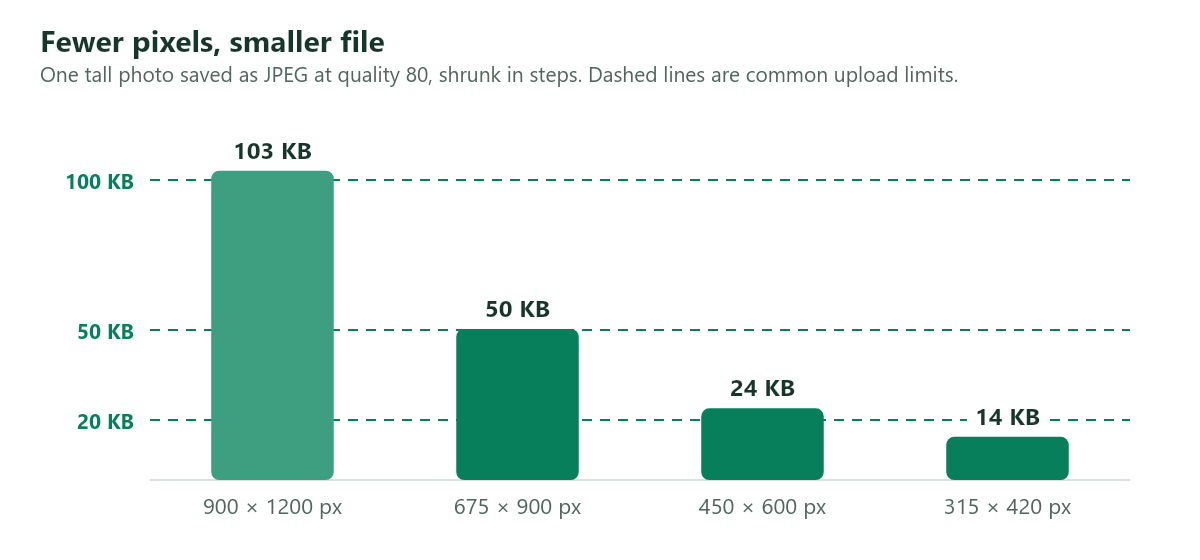
That photo at about 450 × 600 pixels lands near 24 KB, which clears a 50 KB limit with room to spare, while the full 900 × 1200 version is just over 100 KB. The exact figures depend on how much detail is in your photo, so treat them as a guide.
The image resizer sets exact pixel dimensions with the proportions locked. Resize first, then run the KB tool on the smaller copy. The guide to reducing image size without losing quality explains how pixels, format and quality trade off.
Other Common Limits
Upload limits cluster at a few round numbers, and each has its own page with the tool preselected.
- 20 KB suits very small fields, often a signature. Expect to reduce dimensions as well as quality.
- 50 KB suits strict photo fields. A modest pixel size and good compression usually fit.
- 100 KB is the most common general limit.
- 200 KB leaves room to keep most photos at their original pixel size.
- 300 KB, 500 KB and 1 MB are roomy limits where compression is gentle.
Small limits are hard to meet at full size, and how hard depends on the photo. I ran this test myself on 2 October 2026. I took three sample photographs and found the highest JPEG quality that kept each one at its full pixel size under each limit, using a Node.js canvas encoder. The numbers are on that encoder's 0 to 100 scale, and other programs use different scales.
| Limit | Vase, 900 × 1200 | Lake, 1200 × 800 | Waterfall, 800 × 1200 |
|---|---|---|---|
| 20 KB | 23 | 5 | 5 |
| 50 KB | 62 | 16 | 14 |
| 100 KB | 77 | 40 | 37 |
| 200 KB | 97 | 74 | 73 |
The vase is mostly smooth surfaces, so it fits 100 KB at a comfortable 77. The lake and the waterfall are full of texture, and they need 40 or less. As a cross-check, I ran the lake photo through the live Resize Image to KB tool with a 100 KB target. It kept all 1200 × 800 pixels and returned a 99 KB file at a reported quality of 35%, close to the 40 my encoder needed, though the two programs don't share a quality scale. A quality of 5 would look badly broken, which is why very small limits are better met by shrinking the picture too, as the chart above shows.
Photos, Signatures and ID Scans
A portrait of a person has smooth skin and soft shadow, which tend to compress well. A signature is mostly white paper with a thin line, so it compresses to almost nothing. Forms often set a tiny pixel box for it, such as 140 × 60. The KB tool has a Change resolution option where you type an exact width and height in pixels. Crop away the empty paper first, so the signature fills the frame. If the form wants ink that is pure black on white, the guide to making a photo black and white explains the pure black and white mode and its threshold.
A scanned ID has fine print, which suffers under heavy compression. Compress it as little as the limit allows, and check that every character is still readable before you submit. This tool handles JPG, PNG and WebP images. It doesn't compress PDFs.
When the Form Wants Exact Pixels
If the form gives a pixel size, such as 630 × 810, your photo has to match it without distortion. Stretching a photo to fit changes the shape of the person in it, and a distorted face may be rejected. Crop to the right shape first, then resize.
Two modes keep the proportions intact. Crop fills the exact size edge to edge and trims whatever overflows, and Fit places the whole photo inside that size and fills the rest with a color you choose. The Photo Stretcher editor has both. If you're not sure how a stretch will look, the guide to stretching a photo shows how to work out the distortion before you commit.
Still Getting a Photo Upload Error?
If the photo is still over the limit, a very small target on a large, detailed photo may be out of reach for compression alone. Shrink the pixels first, or pick a slightly higher target if the form allows.
If the form says the file type is wrong, check that the file ends in .jpg or .jpeg and that it's a real JPEG. Renaming a PNG to .jpg doesn't convert it. Re-export it as a JPEG instead.
If the form says the image is too small, don't compress further. Go back to the original. When the form sets a minimum in KB, use the original file or a gentler target. Enlarging a small photo adds no detail. Passport portals often set a minimum, and the guide to digital passport photo requirements shows examples.
If the photo looks blurry after compression, go back to the original, since compressing a compressed copy stacks the damage. Then set a higher target or resize the pixels first.
If the face looks cut off or stretched, the shape has changed. Re-crop the original to the form's ratio.
Is It Safe to Use an Online Tool for an ID Photo?
It depends on how the tool works. Some online compressors upload your file to a server, which leaves a copy of your photo or ID on someone else's machine. Our tools process the image in your browser using the Canvas API, so the file never leaves your device, and nothing is kept once you close the tab.
Frequently Asked Questions
How do I reduce a photo's size in KB on my phone?
Open the Resize Image to KB tool in Safari or Chrome, choose the photo from your library, set the limit and download the result. If the photo is HEIC, convert it to JPG first.
Why does a form reject my 99 KB file when the limit is 100 KB?
Windows counts a kilobyte as 1,024 bytes, while macOS, iOS and some forms count 1,000. A file that Windows shows as 99 KB is about 101,400 bytes, which a form counting in thousands reads as 101 KB, over the limit. Set your target to 95 and try again.
Can I get a photo to exactly 100 KB?
Not to the exact byte. Encoders take a quality setting, and the bytes that come out depend on the picture. The tool finds the highest quality that lands under your limit, which usually means the high nineties.
Will reducing the file size reduce the dimensions?
Only if compression alone can't reach the limit. The tool compresses first and shrinks the dimensions proportionally only when it has to. The result panel tells you when it did.
What's the best format for a form upload?
JPEG. Almost every form accepts it, and it gives the smallest files for photographs. Use PNG only when the form asks for it.
Checklist Before You Submit
- The file is a real JPEG with a plain name, such as photo.jpg.
- The size in KB is under the limit, with a few percent to spare.
- The width and height in pixels match what the form asks for.
- The shape is right, and nothing is stretched or cut off.
- The picture still looks sharp when you open the compressed file at full size.
- Your original is saved somewhere safe, in case you need to redo it.
The Short Version
Find out which of the four checks you failed. Read the limit exactly, aim a few percent under it, save as JPEG, and shrink the pixels first if the result looks soft. Keep the original so you can try again with different settings.

 Photo Stretcher
About Sabir Ali
Founder of Photo Stretcher
I built Photo Stretcher because resizing an image online usually means uploading it to a stranger's server and hoping for the best. Everything here runs in your browser instead: a stretcher, a resizer, a KB compressor, a converter. Your files never leave your device, and no pixel is invented by AI.
I review every guide on this site before it goes live. If a method stops working, I update the guide.