

Vector vs Raster Images: Which Should You Use?
What vector and raster images are, what happens when you enlarge each one, which has the smaller file, and which to use for logos, photos, forms and print.
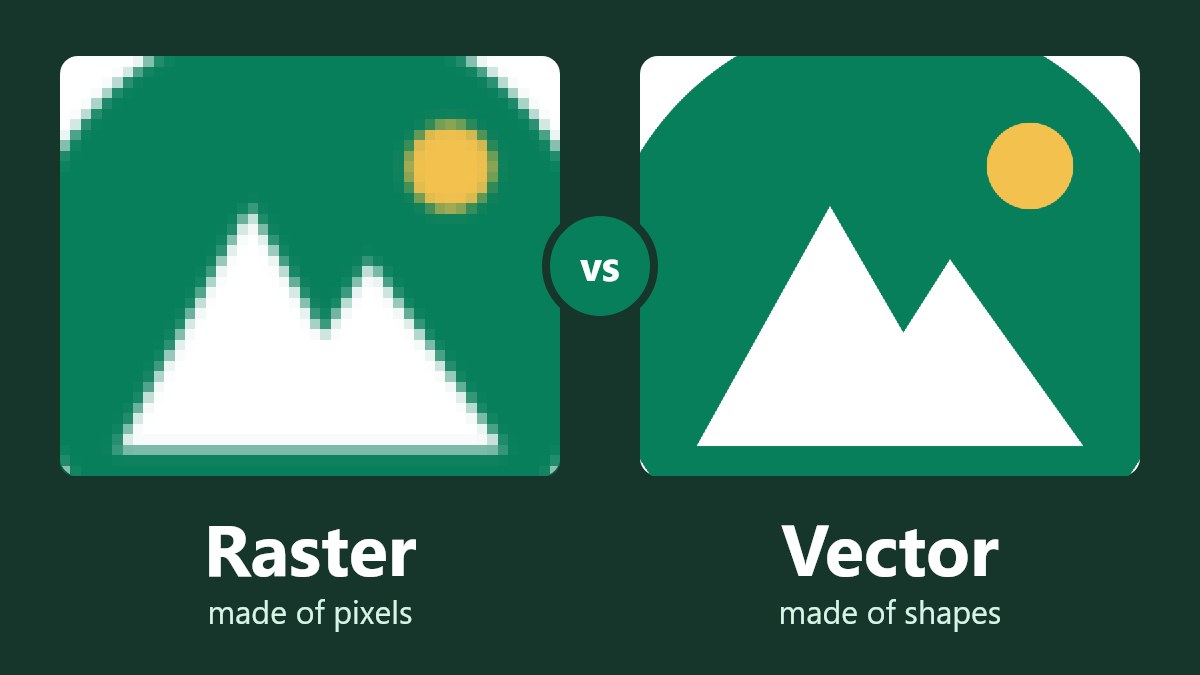
The vector vs raster choice depends on how the image is constructed. Raster images consist of a grid of pixels, while vector images consist of shapes that are described using math. Raster should be used for photos and vector should be used for logos, icons and simple graphics that you want to be clear at different sizes.
This difference can be seen in the example below. We increased the size of a small logo 8 times. The raster version became blurry with fuzzy edges. The vector remained clear. This guide will explain why and help you to decide which one to use depending on your use case. You may also search ‘raster vs vector’ but it’s the same thing.
Vector vs Raster: Quick Summary
| Type of image to create | Type of image | Common file type |
|---|---|---|
| Photo | Raster | JPG (or WebP for use on website) |
| Screenshot | Raster | PNG |
| Logo / Icon | Vector | SVG, AI, EPS |
| Logo for forms / social media | Raster (from your vector) | PNG, JPG |
| Banner / Sign | Vector (depending on artwork) | Ask your print shop |
| Simple illustration | Vector | SVG |
| Painting / Textured artwork | Raster | PNG, JPG |
What Is a Raster Image?
Raster images are made up of a grid of small colored squares known as pixels. All photos taken on your phone and screenshots are raster images. Common raster formats include JPG, PNG, GIF, BMP, TIFF & PSD. WebP, HEIC & AVIF operate in the same way.
Raster images are good for photos as they can contain detailed information and smooth color changes. However, the grid is fixed, so enlarging an image can't add real detail. If your image is 200 pixels wide, that's all the detail it has across its width. When you increase the image size, software will make assumptions about the new pixels.
PNG is a raster image. While logos are often saved as PNGs, it is not a vector!
What Is a Vector Image?
Vector images do not use pixels. Instead, they use instructions. For example, draw a circle here, fill with green. These instructions are followed by your screen or printer to create the image. They can be any size and will remain clear. Common vector types are SVG, AI, EPS.
The most common vector type used online is SVG (Scalable Vector Graphics). MDN describes SVG as being an XML based markup language for 2D based vector graphics. SVG files are small text files. Ours said draw a circle, then a mountain shape, then a sun.
Increasing the Size
We created a simple logo in SVG. We exported a PNG of 200 pixels. We then increased the size by 8 times.
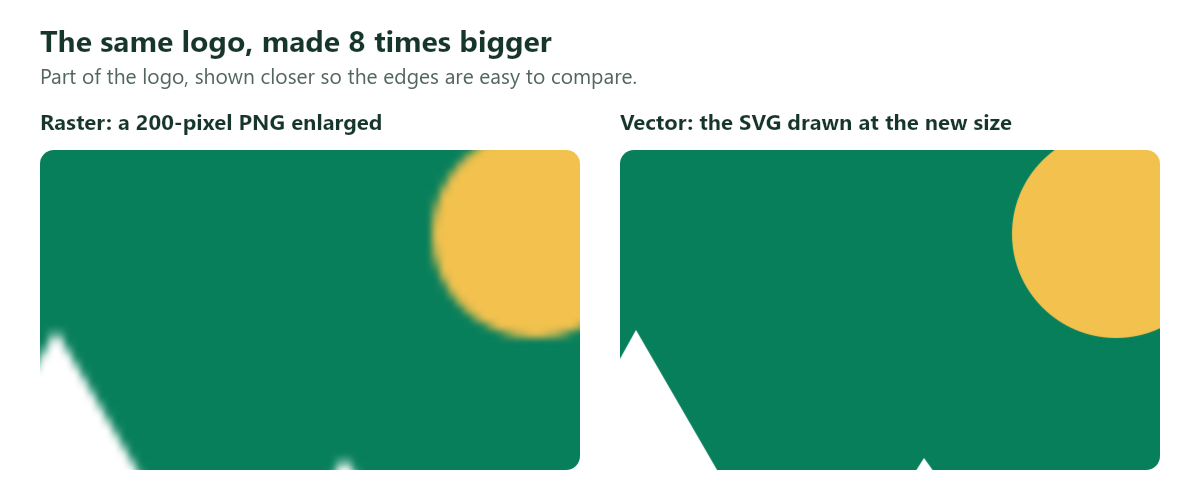
If you need a larger raster image, use the largest original file you can find. The Image Resizer will warn you that you are increasing the size. You will not be able to add detail that wasn’t originally there. Learn more about aspect ratio vs resolution.
If you stretch it out of proportion, a circle in your logo will become an oval. This happens with both raster and vector. While the vector image will remain clear, it will still be distorted. See how to stretch a photo to see how far you can stretch it.
Which Is Smaller?
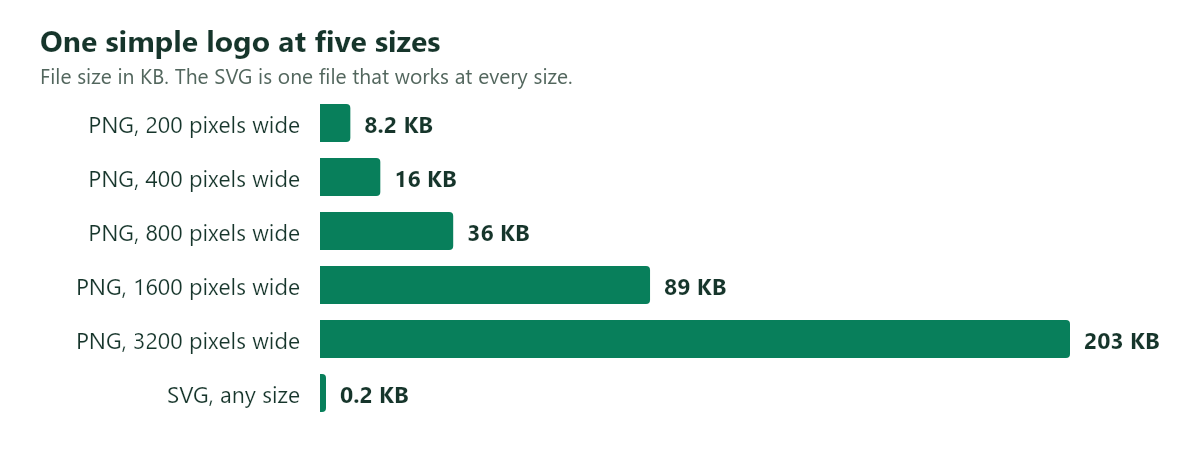
Vector images will be much smaller for simple logos, as one file can be used for all sizes. Our SVG file was 0.2KB. The PNG file for the same logo was 203KB for 3200 pixels.
Vector files are not always smaller. As you have to write out all the shapes, they can become large. We created a busy test image with 20,000 small colored circles. The SVG was 1,050KB. Saved at 1000 x 1000 pixels, it was 433KB as a JPG and 2,109KB as a PNG.
The more detail in your image, the less useful vector will be.
Photos are not saved as vector as there are too many details.
When to Use
Logos / Icons
Keep your vector file as your main file. Export raster versions if needed. If you need a larger clear PNG, you can create it easily. For website logos/icons, SVG is a great option.
Photo
Use raster. Photos are captured using pixels, so there is no choice. See PNG vs JPG to see what raster format to save your image as.
Forms / Email / Social Media
Use raster. Often when uploading forms or to social media sites, you will only be able to upload certain file types such as JPG/PNG. SVG may not be accepted. The Image Resizer can only take JPG, PNG & WebP. Export your PNG from your vector file.
Printing
If you have a vector file, it is safest to use this for a large banner with your logo/text. It will print clearly and can be any size. For photos ensure you have enough pixels. Multiply the number of inches you want to print by 300. Print shops will have their own requirements, so ask your print shop.
Can You Convert Vector to Raster?
Yes! Vector images can easily be converted to raster. They will be clear at your desired size. Most design applications will allow you to export your image as a PNG/JPG.
Export SVG to PNG
We recommend using Inkscape (free design application). Follow the steps below, although menu items can vary slightly. Refer to their beginner’s guide.
- Open your SVG in Inkscape.
- Press Shift + Ctrl + E to open the PNG export settings.
- Enter the width in pixels you would like. The height will automatically change.
- Name your file and press Export.
Your PNG will have a transparent background. Unless you add one, it will remain transparent. Ensure you keep your SVG to export another size later.
Convert Raster to Vector
It can be difficult to convert raster to vector. Simply saving your JPG as an SVG file will not create vector shapes. Our Image Converter allows you to save an SVG file. However, it will not trace the pixels. Instead, it will just put your pixels into the file. It will not become any clearer when increased in size.
To create real vector shapes you will need to trace your image in an application such as Inkscape or Illustrator. Inkscape’s manual mentions that if you expect a 100% accurate copy, you will be disappointed. Tracing works best for dark silhouettes against a bright background. Simple logos can be traced well. Photos usually cannot be. If you have the original vector logo, use this.
Frequently Asked Questions
Is PNG Vector or Raster?
Raster! PNGs are made up of a grid of pixels.
What is SVG used for?
Mainly logos, icons, charts and simple illustrations on websites. Because it is vector, it stays clear at any size, and simple graphics make small files.
Is PDF Vector or Raster?
It can be both or either. PDFs can contain vector shapes and text along with raster images. It depends on how it was created.
Why is my logo blurry when I make it bigger?
It is likely a raster image, such as a small PNG/JPG. See if there is an original vector file. Or ask whoever designed it.
Can I convert my photo to vector?
You can trace it. But it will look like a simplified illustration. The detailed parts will not be present.
The Short Version
Raster is pixels, and vector is shapes. Use raster for photos, screenshots and anything going to a form or social site. Use vector for logos, icons and simple graphics, and keep that file as your main file so you can export a clear copy at any size.
If you have a raster image that needs a new size, open it in the Image Resizer and check the result before you download. It works in your browser, and your image is never uploaded.

 Photo Stretcher
About Sabir Ali
Founder of Photo Stretcher
I built Photo Stretcher because resizing an image online usually means uploading it to a stranger's server and hoping for the best. Everything here runs in your browser instead: a stretcher, a resizer, a KB compressor, a converter. Your files never leave your device, and no pixel is invented by AI.
I review every guide on this site before it goes live. If a method stops working, I update the guide.