

Aspect Ratio vs Resolution in Photos: What Each Edit Changes
What aspect ratio and resolution each describe, which edit changes which, and the order to fix a photo's shape, pixels and file size in.
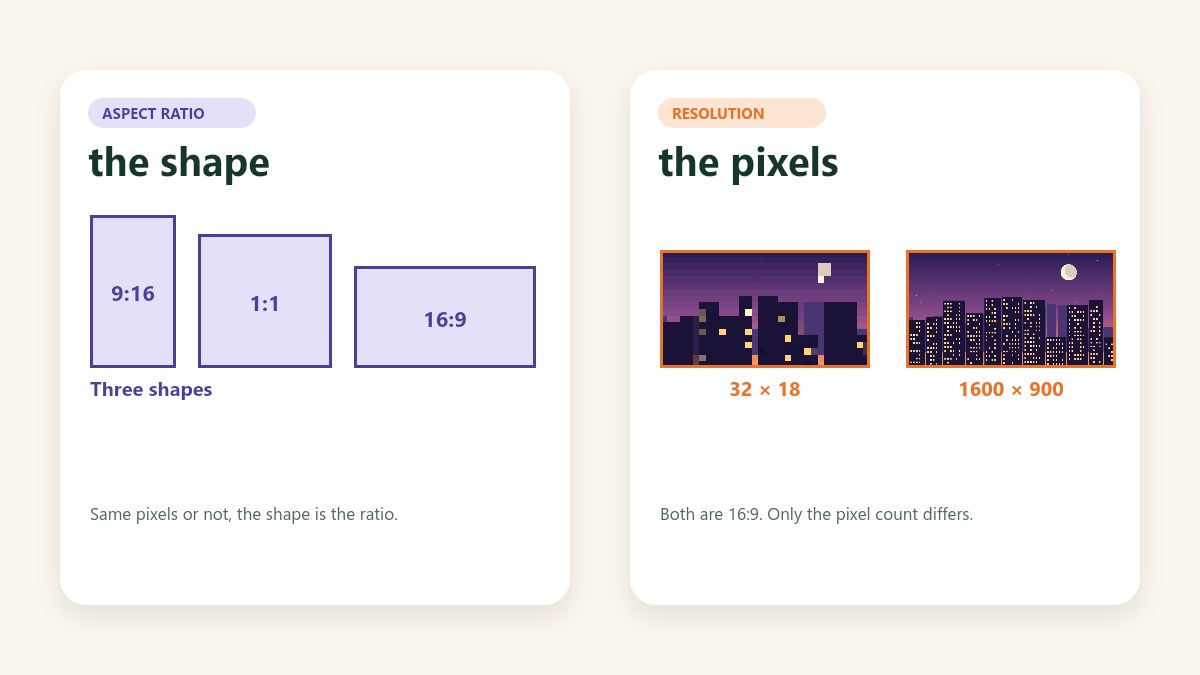
The difference between aspect ratio and resolution comes down to this: aspect ratio is the shape of a picture, and resolution is how many pixels it holds. They're separate numbers. A picture can keep its shape while its pixel count changes, and it can keep its pixel count while its shape changes. Mixing them up is why a photo comes out squeezed, soft or rejected by an upload form.
This guide explains what each term means for a photo, which edits change which, and the order to fix them in. Every tool mentioned runs in your browser, so nothing is uploaded.
Aspect Ratio vs Resolution: The Short Answer
Aspect ratio answers "what shape is it?" Resolution answers "how many pixels does it have?" The first is about fitting a frame and the second is about detail, so neither one matters more in general. Which one you need depends on the job. The table sets them side by side.
| Question | Aspect ratio | Resolution |
|---|---|---|
| What it describes | The shape of the picture | How many pixels the picture holds |
| How it's written | Width:height, such as 3:2 | Width × height, such as 1200 × 800 |
| Example | 1920 × 1080 and 1280 × 720 are both 16:9 | 1920 × 1080 holds 2.07 million pixels and 1280 × 720 holds 0.92 million |
| Changes when you | Crop, pad or stretch | Resize, crop, pad or enlarge |
| Decides | Whether the picture fits a frame | How much detail it holds and how large it can look |
What Is Aspect Ratio?
Aspect ratio compares a picture's width with its height, written as width:height. A 1200 × 800 photo is 3:2, a square is 1:1, and a vertical phone video or story is 9:16. To find a ratio, divide both sides by the largest number that fits into each, which is what the aspect ratio calculator does for you.
Pictures share an aspect ratio when their sides stay in the same proportion. That's why 1920 × 1080 and 1280 × 720 are both 16:9: divide the first by 120 or the second by 80 and you get 16 and 9. The ratio says nothing about size. If a frame, a form or a platform wants a particular shape, this is the number it cares about, and the guide to changing the aspect ratio of an image without cropping covers how to reach one.
Video adds one more idea, pixel aspect ratio, which is the shape of each individual pixel. Older standard-definition video used pixels that weren't square, so the shape of the frame and the shape of a pixel could differ. Photos and screens use square pixels, so you can ignore it, and everything in this guide assumes square pixels.
What Is Resolution?
For a photo, resolution is the width and height in pixels, and the pixel total is the product of the two. Multiply 1200 by 800 and you get 960,000 pixels, or 0.96 megapixels. More pixels let a picture hold finer detail and be shown or printed larger before it looks soft. On high-density screens a picture needs about twice the pixels to look as sharp as on a standard screen, which is why web images are often exported at twice their displayed size.
The word shifts meaning depending on where you meet it. In photos, it means pixel dimensions. In print, it often means pixels per inch. In video, it's a label such as 1080p, which is 1920 × 1080, or 4K, which on TVs and streaming usually means 3840 × 2160. All of these are counts of pixels, and none of them is a shape. A 4K picture is a resolution that happens to be 16:9.
Resolution Is Not DPI or File Size
Three different numbers get called size, and they move independently. Pixel dimensions are the resolution. DPI, or PPI, is a label that tells a printer how many pixels to put in each inch. File size is the storage the file takes in KB or MB.
DPI only edits a label, so it doesn't change the pixel count or the file size. File size depends on the pixel count, the format and the compression. The guide on reducing image size without losing quality measures this: the same 800 × 1200 waterfall photo is 1,775 KB as a PNG and 223 KB as a JPEG at quality 80. The resolution is identical, and the file size differs by a factor of eight. That guide also explains DPI in full.
Print is where DPI does real work. Multiply the inches by 300 to get the pixels a print needs: a 4 × 6 print wants 1200 × 1800, a 5 × 7 wants 1500 × 2100, and an 8 × 10 wants 2400 × 3000. Those three sizes are three different aspect ratios, and the next section shows why that matters.
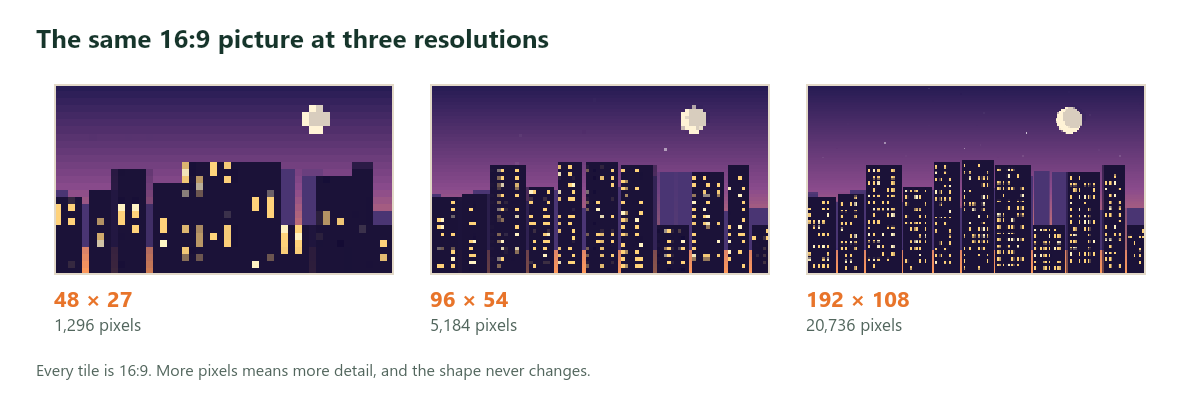
Same Shape, Different Pixels
1920 × 1080, 1280 × 720 and 640 × 360 are all 16:9, but they hold 2.07 million, 0.92 million and 0.23 million pixels. Same shape, very different detail.
The reverse is true too. A 1200 × 800 photo holds 960,000 pixels, and a 980 × 980 square holds 960,400. The pixel counts are almost the same and the shapes aren't. So a megapixel number never tells you the shape, and a ratio never tells you the sharpness.
What Each Edit Changes
Each edit moves one number, both, or neither.
| Edit | Aspect ratio | Pixel dimensions | File size |
|---|---|---|---|
| Resize with the ratio locked | Same | Change | Changes with the pixel count |
| Resize with the ratio unlocked | Changes, and the photo is squeezed or stretched | Change | Changes |
| Crop | Usually changes | Fewer pixels | Usually smaller |
| Add padding | Changes | The canvas grows and the photo keeps its pixels | Changes |
| Enlarge past the original | Same | More pixels, but no new detail | Usually larger |
| Compress to a KB limit | Same | Same, unless the tool has to shrink them | Smaller |
| Convert the format | Same | Same | Changes |
| Change the DPI label, with resampling off | Same | Same | Unchanged |
Enlarging adds pixels without adding detail, so the resolution number goes up and the picture looks softer, not sharper. And padding is the one edit that changes the shape without touching a single pixel of the photo. Padding the top and bottom is what video people call letterboxing, and padding the sides is pillarboxing.
Upscaling, Downscaling and Detail
Downscaling throws pixels away by blending neighbors together. A 4000 × 3000 photo shrunk to 1000 × 750 keeps a sixteenth of its pixels and still looks sharp at that size, because it's being shown at a size it can hold.
Upscaling goes the other way, and it can't add what was never captured. The software makes up new pixels by blending the old ones. An 800 × 600 photo enlarged to 1600 × 1200 has four times the pixels and exactly the same detail, which is why the image resizer warns you when you enlarge. Keep the original and resize from it each time, never from a copy that has already been shrunk.
Does Changing the Aspect Ratio Change the Resolution?
Usually the pixel dimensions change, because a new shape needs a new width or height. Whether the picture loses sharpness depends on how you got there.
Cropping throws pixels away. A 6000 × 4000 photo holds 24 megapixels. Cropped to a square it becomes 4000 × 4000, or 16 megapixels, a third fewer. Cropped to 4:5 it becomes 3200 × 4000, or 12.8 megapixels. The remaining pixels are as sharp as before, but there are fewer of them, so the picture can be shown or printed smaller.
Padding keeps every pixel. A 3000 × 2000 photo padded to a square gets a 3000 × 3000 canvas with the original picture in the middle. Stretching changes the shape by moving pixels around, so the pixel count depends on the target size while the contents are distorted. If you want a different shape and the full picture, padding costs only empty space.
What Happens When the Shape Doesn't Match
When a picture meets a frame of a different shape, it has to be cut, padded or distorted. You can choose which one, or a website will choose for you.
| Outcome | What you see | How to get it on purpose |
|---|---|---|
| Crop to fill | The frame is full and the edges are cut off | Crop to the frame's ratio yourself |
| Letterbox | Bars above and below a wide picture | Add padding to the top and bottom |
| Pillarbox | Bars on the left and right of a tall picture | Add padding to the sides |
| Stretch | The frame is full and everything is distorted | Resize with the ratio unlocked, for a small change only |
Cropping costs pixels and stretching costs proportions. Bars cost only space, and a blurred or colored background makes them look deliberate. The guide to stretch, resize, crop and fit compares all four on one photo.
Common Aspect Ratios and Pixel Sizes
Any size with the right width-to-height ratio has that shape. These are common ones, with their pixel totals.
| Aspect ratio | Example size | Megapixels |
|---|---|---|
| 1:1 | 1080 × 1080 | 1.17 |
| 4:5 | 1080 × 1350 | 1.46 |
| 9:16 | 1080 × 1920 | 2.07 |
| 3:2 | 3000 × 2000 | 6.00 |
| 4:3 | 1600 × 1200 | 1.92 |
| 16:9 | 1920 × 1080 | 2.07 |
| 16:9 | 3840 × 2160 | 8.29 |
Cameras have a native shape. Most DSLR and mirrorless cameras shoot 3:2, and most phones shoot 4:3. That's why a phone photo gets cropped for a 16:9 slot, and why a 3:2 camera photo loses its edges at 8 × 10.
To get the matching height for a width, multiply the width by the second number of the ratio and divide by the first. For 16:9 at a width of 1600, that's 1600 × 9 ÷ 16 = 900.
Worked Example: A Form Wants 600 × 600 and Under 100 KB
Forms often ask for a shape, a pixel size and a file size at once. They're three separate checks, so fix them in that order: shape, then pixels, then file size. I ran all three steps in the live tools with a 3000 × 2000 test photo.
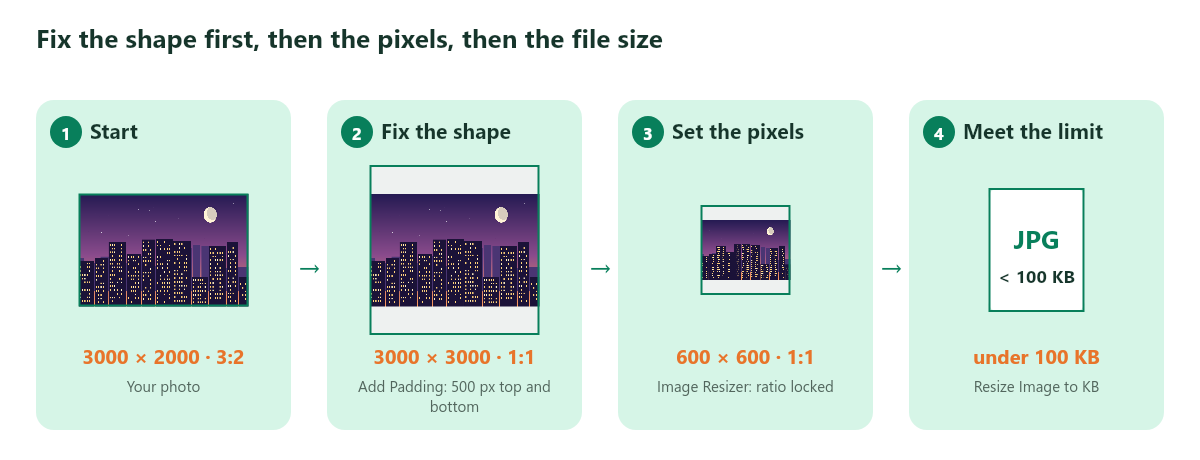
- Fix the shape. The photo is 3:2 and the form wants 1:1. In the Add Padding tool, set the unit to px, untick Same on all sides and add 500 pixels to the top and bottom. The tool reported a new size of 3000 × 3000 when I saved it as JPEG. To crop instead, cut it to 2000 × 2000, which discards a third of the photo.
- Set the pixels. Open the image resizer, keep Lock aspect ratio on and type 600 for the width. With the lock on, the padded 3000 × 3000 file became 600 × 600.
- Meet the limit. Check the file size. My 600 × 600 JPEG came out at 83 KB, already under 100 KB, so this step had nothing to do. A more detailed photo can land higher. Then run it through Resize Image to KB with the form's limit as the target. Keep the file a JPEG, because a PNG can only get smaller by losing pixels, and that would break the 600 × 600 requirement.
The order matters. If you type 600 × 600 into the resizer with the ratio unlocked, you skip the shape step and the photo is squeezed. If you compress first, the KB tool works on pixels you're about to throw away. Each later step keeps what the earlier step set. The guide to photo upload errors covers the other checks a form can fail.
Common Mistakes
- Enlarging a photo to raise its resolution. The pixel count goes up and the detail doesn't, so the picture looks soft.
- Treating 4K or 1080p as a shape. They're pixel counts, and both happen to be 16:9.
- Lowering the DPI to shrink a file. It's a label, so the file stays the same size.
- Resizing with the ratio unlocked to hit a shape. The picture is squeezed or stretched, and a face is the first place it shows.
- Fixing the file size before the shape. Padding or cropping afterwards changes the pixels you just compressed.
- Comparing megapixels to compare shapes. 0.96 megapixels can be 1200 × 800 or 980 × 980.
Frequently Asked Questions
Is 4K an aspect ratio or a resolution?
It's a resolution. On TVs and streaming, 4K usually means 3840 × 2160 pixels, and that size happens to be 16:9. Other 4K sizes exist, so the label says how many pixels, not what shape.
Does higher resolution change the aspect ratio?
Not by itself. Scaling a picture up or down by the same factor on both sides keeps its ratio. The ratio changes only when width and height change by different factors, as they do in a crop, a pad or a stretch.
Can two pictures have the same pixel count and different shapes?
Yes. 1200 × 800 holds 960,000 pixels and 980 × 980 holds 960,400. Two pictures with the same width and height always share a shape, but equal totals don't imply equal shapes.
What is the aspect ratio of 1920 × 1080?
It's 16:9. Divide both numbers by 120 and you get 16 and 9.
How do I find a photo's resolution?
On Windows, right-click the file, choose Properties and open the Details tab. On a Mac, select the file and press Command+I, then look under More Info. Both show the width and height in pixels.
Which matters more, aspect ratio or resolution?
Neither does in general, because they do different jobs. Aspect ratio decides whether a picture fits a frame, and resolution decides how much detail it holds. When a form or platform asks for both, fix the shape first.
Does aspect ratio affect image quality?
Not directly. Sharpness comes from the pixel count and the compression. Changing the ratio can still cost quality indirectly: a crop leaves fewer pixels, and a stretch distorts the picture.
The Short Version
Aspect ratio is the shape and resolution is the pixel count. Crop, pad and stretch change the shape, and resize and enlarge change the pixels. When a form asks for both, fix the shape first, set the pixels second and meet the file-size limit last.

 Photo Stretcher
About Sabir Ali
Founder of Photo Stretcher
I built Photo Stretcher because resizing an image online usually means uploading it to a stranger's server and hoping for the best. Everything here runs in your browser instead: a stretcher, a resizer, a KB compressor, a converter. Your files never leave your device, and no pixel is invented by AI.
I review every guide on this site before it goes live. If a method stops working, I update the guide.