

Why Is My Image File Size So Large? 6 Causes and Fixes
The six usual reasons an image file is so large, what each one costs on the same test photo, and how to fix the one that applies to you.
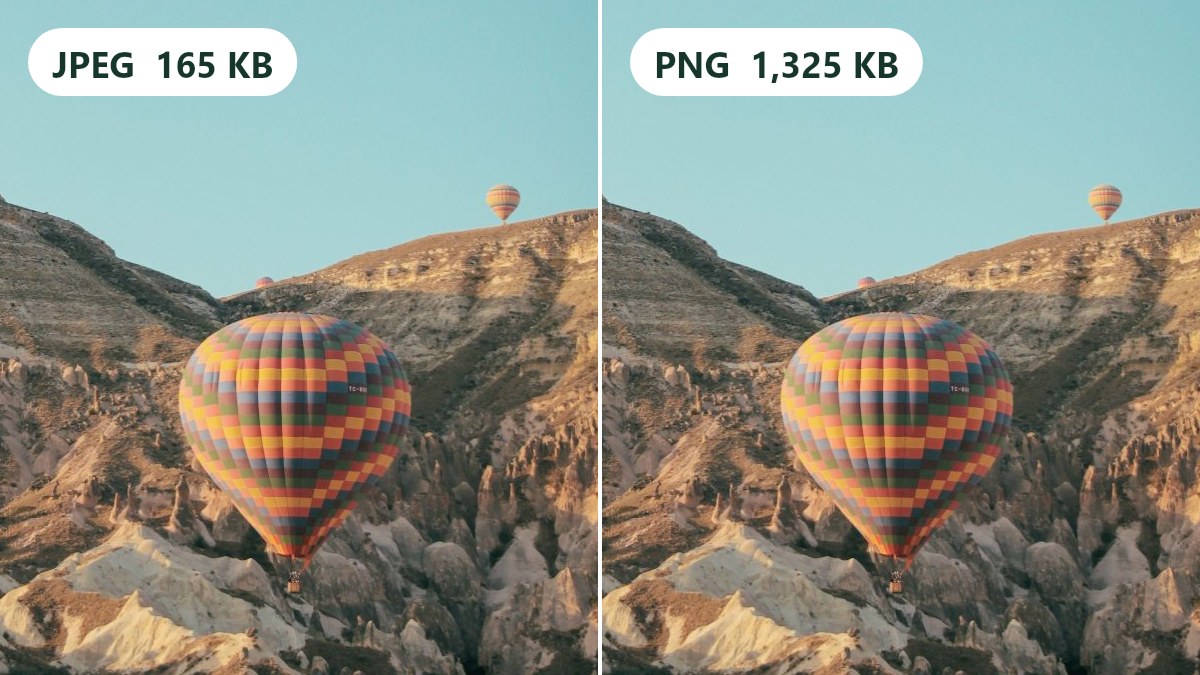
The image shown here has a file size of 165 KB as a JPEG and 1,325 KB as a PNG. The actual image remains the same, just the format has changed.
Why is my image file size so large? Generally it will be due to one of the following reasons: too many pixels, incorrect format, high quality, lots of detail/noise, an editing file or extra metadata. Using this guide will help you understand how much each reason increases the file size of your image. We’ve tested this using lots of formats (dozens!) to give you an idea of what issue you have.
What Determines File Size?
Images are made up of pixels. Usually there will be 3 values for each pixel in the image, one for red, one for green and one for blue. Each of these values will take 1 byte. This means we can calculate the file size of an image using:
Width x Height x 3 = Bytes
So our test image is 1200 x 800 pixels meaning there are 2.9 million bytes of pixel data. A 12 megapixel image on a phone will be 4000 x 3000 pixels meaning there will be 36 million bytes (or 36MB). This data will then be compressed based on the format, quality and the image itself.
Below is a table showing how much each of the 6 reasons increased the file size of our image. The base image was 165KB as a JPEG with a quality of 80.
| Reason | Test | File Size | Solution |
|---|---|---|---|
| Too many pixels | Base image vs 600x400 | 165KB vs 48KB | Resize to required size |
| Image saved as PNG | Change to PNG | 1,325KB | Save images as JPEG/WebP |
| High quality | Image saved with a quality of 100 | 413KB | Set quality to 75-85 |
| Too much noise | Lots of noise added | 315KB | Reduce noise before saving |
| Edited/high bit depth | 16bit PNG or Uncompressed TIFF | 2,024KB/2,813KB (sharp) | Export JPEG copy |
| Extra metadata | Added basic EXIF block | +0.6KB | Usually not an issue. |
Our test image shows hot air balloons over a rocky valley. We also ran the main tests on 3 other images. Note the quality numbers will vary between programs. This is just to give you an idea of how much each of these issues will increase the file size. Your image will vary.
Too Many Pixels
By doubling the width and height you will quadruple the number of pixels. If you have a 4000 x 3000 image but it will only be displayed on a webpage at 800px wide you will have a lot more data than necessary.
| Size | File Size |
|---|---|
| 1200 x 800 | 165KB |
| 900 x 600 | 94KB |
| 600 x 400 | 48KB |
| 300 x 200 | 16KB |
As we halved the width and height our file size reduced by 71%. If you know the image will only be displayed at a small size then you won’t be able to see what you removed.
Calculate what the maximum size will be and resize accordingly. The Image Resizer will show you what the new file size will be. This tool works within your browser. See our guide to reducing image size without losing quality for information on the order to perform these actions.
Image Saved as PNG
Usually if you have a large PNG file it will be due to the format. PNGs are designed to be lossless, meaning they can recreate the original data perfectly. This is great if you need a logo or screenshot with flat colors but will not compress well with a photograph.
Our balloon image was 8 times larger as a PNG. All 4 images were 8-9 times bigger.
Often this will happen by accident. Screenshot images are usually saved as a PNG. If you take a screenshot of a photo you will inherit this issue. Some editors will also default to saving as a PNG.
Save your photographs as JPEG/WebP. Use PNGs if you need transparency or crisp edges around text. Use the format option in the Image Resizer. For the full comparison, see PNG vs JPG.
High Quality
This is your first stop if you’re wondering why your JPEGs are so large. The higher quality setting adds a lot of extra bytes.
| Quality | File Size |
|---|---|
| 100 | 413KB |
| 95 | 240KB |
| 90 | 200KB |
| 85 | 175KB |
| 80 | 165KB |
| 70 | 129KB |
| 60 | 94KB |
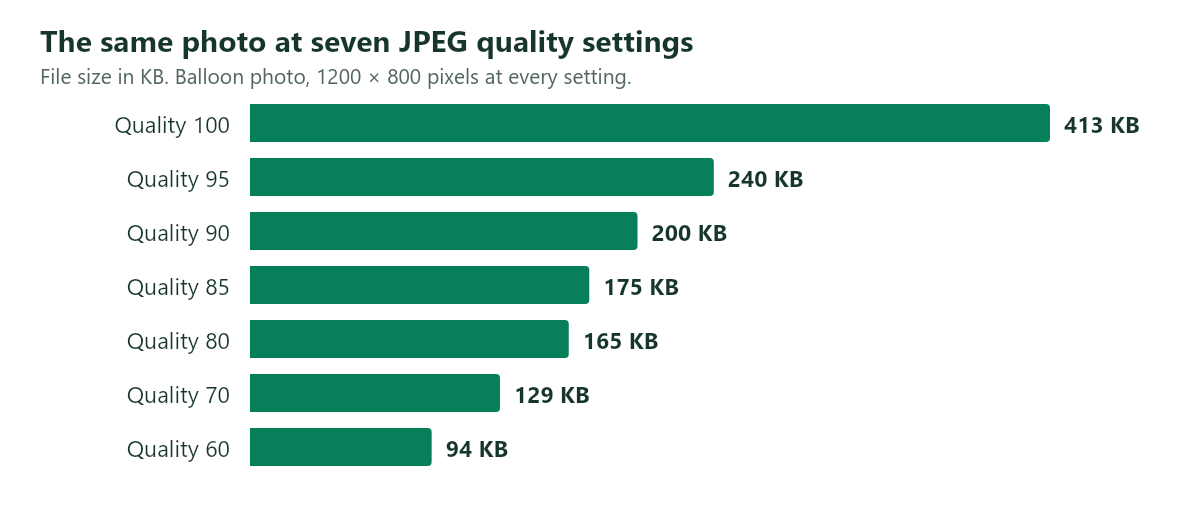
The jump between quality 95 and 100 is bigger than the jump between 60 and 95. By increasing the quality from 80 to 100 the file size has increased by 2.5 times. All 4 images had increased by 2.5-2.9 times. By increasing from 95 to 100 the file size increased by 174KB, this is more than the entire difference between quality 60 and quality 85.
Most images should be exported using a quality of 75-85. Many editors will have a ‘maximum quality’ or ‘best’ option. Check what the quality is actually set to. If you need to reach a certain limit then use our Resize Image to KB tool to find the highest quality you can use.
Can’t Add Detail by Saving at a Higher Quality
If you save your image at a higher quality you will not be able to add back in any detail that was lost when you originally saved it. Our image saved at quality 60 was 94KB. If opened and saved at quality 100 it became 305KB, this is 3.3 times bigger but no additional detail. The extra bytes are due to the imperfections in the original save being recorded more accurately.
Too Much Detail/Noise
Two images with the same size and settings can vary a lot. Smooth areas will compress well but busy areas will not. We split our lake image into 24 sections of 200 x 200 pixels and saved them at quality 80. The smoothest section was 3.7KB and the busiest was 16.1KB, that’s over 4 times bigger!
Noise will make this worse. Every dot is a small amount of detail which needs to be recorded. Photos taken in low light will generally have a lot of noise. Below is a table showing how much the file size increased by adding 3 levels of artificial noise.
| Noise Added | Balloons | Lake |
|---|---|---|
| No noise | 165KB | 227KB |
| Low (5) | 179KB | 233KB |
| Medium (10) | 218KB | 259KB |
| High (20) | 315KB | 328KB |
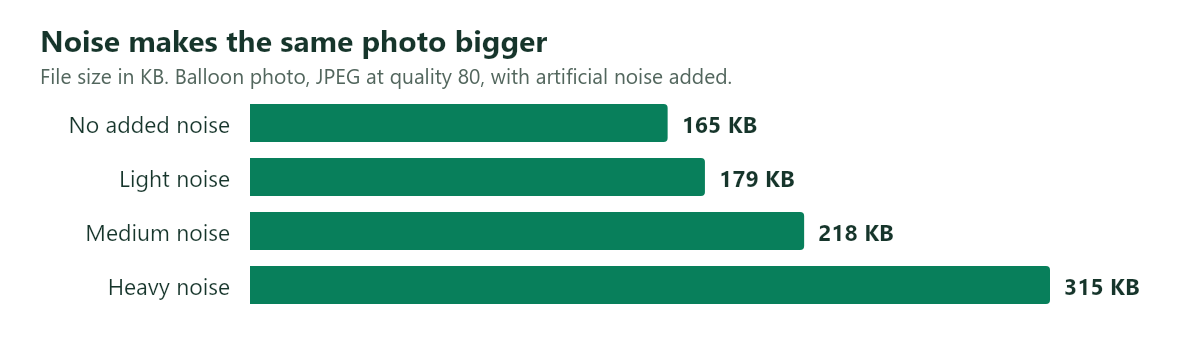
The pixels and quality are the same across all bars. Only the noise has changed. By adding high noise the balloon image almost doubled in size. The lake image increased by 45%. The balloon image was affected more due to having large areas of smooth sky which were inexpensive to save.
If the scene is detailed, there is not much you can do other than reduce the number of pixels or quality. You may be able to reduce the noise using your editor but this will soften the actual texture. Compare the image at a normal size.
Edited/High Bit Depth
Editing files can contain data you don’t need. Our test image saved as an uncompressed TIFF was 2,813KB.
We couldn’t save a 16bit file using the canvas encoder so we used sharp (an image library) to test this. Increasing the bit depth to 16 (from 8 per channel) increased the PNG from 1,630KB to 2,024KB (~24% increase). The original image only had 8 bits per channel so this did not add any extra detail.
Photoshop files can increase a lot more as they contain every layer. In one reported case, a Photoshop user's file stayed at 1.96GB after resizing, then dropped to 40MB once they removed the rejected Generative Fill layers they had kept. This is just one person’s experience but shows where to look.
Use your edited file as your master. Export a separate JPEG/WebP copy to share. If you have a large PSD then delete any layers you no longer need and flatten a copy.
Extra Hidden Data
Phones and cameras will include extra information such as the model of the camera, date and sometimes location. This was the smallest issue. In sharp we added a basic EXIF block including camera details and location. This increased the size of our JPEG by 0.6KB. Adding an sRGB color profile increased it by 0.5KB. A thumbnail of 160 pixels, the kind sometimes included in files, took 4.7KB on its own.
The only exception is if there is a large preview embedded. Some cameras embed a larger preview. A 1200-pixel preview at quality 95 would be 240KB, which is larger than the 165KB image. We didn’t test any camera files so cannot show how common this is. If your file seems to be much larger than expected for the number of pixels and quality then check if there is a preview embedded.
If you need a very small file then remove the metadata. Also remove it if you don’t want to share the location. On a 2MB image a few KB won’t make much difference.
How to Identify What Issue You Have
Check the following in order. The first 2 can be done in seconds.
- Check the file type. If your image ends in .png, .tif, .tiff or .psd then you need to change the format.
- Check the pixel size. How big is the width of your image? Right click on the file (Windows) and click Properties > Details. (Mac) Select the file and click Get Info.
- Compare to a general guideline. Our test JPEGs (quality 80) were 165KB-227KB. This is roughly 0.2KB per 1,000 pixels. If your file is a few times larger than this then it is likely due to a high quality setting.
- Look at the image. Grainy and busy images will be larger. If the scene is detailed then it will be larger.
If the form has rejected your file then see our guide to photo upload errors.
Why are Phone Images So Large?
The answer to "why are my photos so big?" on a phone is mostly due to the number of pixels. A 12 megapixel image will have 12.5 times more pixels than our test image. Multiply this by our 165KB and you’ll get roughly 2MB.
This is just a rough calculation. The actual size will depend on the scene and settings on your phone. If you have a 48 megapixel mode then it will be 4 times larger again.
iPhones have an extra issue. Apple state HEIF provides better compression than JPEG so the High Efficiency setting on your camera uses less storage. If you switch to Most Compatible in Settings > Camera > Formats then new images will be saved as JPEGs which take up more space. HEIF is not accepted everywhere so you may need to convert your HEIC to a JPG.
When is a Large File Okay?
Always keep the original large image if you plan to print, heavily crop or edit in the future. You won’t be able to get those pixels back! Reduce the size of a copy to send via email, forms or webpages.
FAQs
Why didn’t my file size reduce?
It is most likely that you saved the new file at a higher quality. One of our tests had the original image saved at quality 60 (94KB). We reduced the size to 900 x 600 and saved it at quality 100. This increased the file size to 341KB (over 3 times larger!). If we saved it at quality 60 it would have been 59KB.
PSDs can also be an issue if they have layers.
Why did my file increase in size?
Your editor has decompressed the image and saved it using its own settings. These may be higher than the original. By saving the quality 60 test JPEG as a PNG it increased from 94KB to 1,131KB.
Will saving a JPEG at the same quality affect the file size?
Very little. By saving our quality 80 test file at quality 80 in the same program it only reduced to 164KB. However it will still lose a little detail every time. Try to work from the original.
What is a normal file size for a photo?
There is no standard. Our test JPEGs (quality 80) were 165KB-227KB. Full resolution images on your phone will usually be measured in megabytes. It will depend on what limit you’re working to and how big the image will be. See our guide to reducing image size for general guideline sizes for websites.
Why is my screenshot so large?
Screenshots are usually saved as a PNG. This is great for text and flat interfaces but if your screenshot contains lots of photos it will be large for the same reason as a PNG photo.
The Short Version
Check the format first, then the pixel count, then the quality setting. PNG made our test file 8 times bigger, quality 100 made it 2.5 times bigger, and halving the width and height made it 71% smaller. Heavy noise almost doubled it, and metadata barely registered.
To fix a file now, open it in the Image Resizer, choose JPEG or WebP, and watch the size change as you adjust it. If you have a specific limit, use Resize Image to KB instead. Both work in your browser, and your image is never uploaded.

 Photo Stretcher
About Sabir Ali
Founder of Photo Stretcher
I built Photo Stretcher because resizing an image online usually means uploading it to a stranger's server and hoping for the best. Everything here runs in your browser instead: a stretcher, a resizer, a KB compressor, a converter. Your files never leave your device, and no pixel is invented by AI.
I review every guide on this site before it goes live. If a method stops working, I update the guide.