

Image Search Techniques: 10 Ways to Find Any Image (With Screenshots)
Ten ways to find an image or trace where one came from, from better keywords and filters to Google Lens, TinEye and Bing, each with steps and a screenshot.
Image search techniques are the different ways to find a picture online: describing it in words, uploading the picture itself, or searching just one part of it. Each one suits a different job, and the right one saves you a lot of scrolling.
Below are the 10 techniques worth knowing, each with steps, a real screenshot and an example. If you already know what you're trying to do, the table points you to the right one.
Which Image Search Technique Should You Use?
| What you have | What you want | Use technique |
|---|---|---|
| Only an idea in your head | A picture that matches it | 1, 2 and 3 |
| A photo | Other pages that use it | 4 |
| A photo of a room, an outfit or a street | One object in it | 5 or 6 |
| A photo | Who posted it first, or a bigger copy | 7 |
| A photo of something you want to buy | Where to buy it | 8 |
| A photo with a sign, label or username in it | Where it was taken or posted | 9 |
| A photo shared as news | Whether it's old or out of context | 10 |
1. Describe the Image in Specific Words
Keyword search is still the quickest technique when the picture only exists in your head. Search for what's in the image, not the topic around it.
Build the search from four parts: the subject, its color or material, the setting and the angle. "Flower" brings back every flower there is. "Rainbow chrysanthemum close up white background" brings back a short, useful page.
Real example: "office desk" is too broad to help. "Minimal white office desk with laptop, top view" tells Google the color, the objects and the angle, so far fewer results are off target.
Use it when: you know what you want but have no example image. It only finds images someone has described in words, so new or unlabeled pictures won't show up.
2. Use Search Operators
Operators are short commands that filter results before you see them. They work in Google Images as well as in a normal Google search.
- site: searches one website. "earth apollo 17 site:nasa.gov" shows NASA's own copies, which is where you'd download an official photo.
- A minus sign removes a word. "jaguar -car" keeps the animal and drops the car brand.
- Quotation marks match an exact phrase, so "golden gate bridge" in quotes isn't split into three separate words.
- filetype: limits the format. "bicycle icon filetype:svg" finds icons you can enlarge without blur.
Use it when: you know where a good version is likely to be, such as a museum, a government site or a brand's own website.
3. Filter by Size, Color, Type and Usage Rights
Filters narrow results by what the image looks like and how you may use it. Most guides stop at "use the filters", so here is exactly what Google's Advanced Image Search page offers:
| Filter | Options |
|---|---|
| Image size | Large, Medium, Icon, larger than 400×300 up to 1024×768, or larger than 2 MP up to 70 MP |
| Aspect ratio | Tall, Square, Wide, Panoramic |
| Colors in the image | Full color, Black and white, Transparent, or one of 12 colors from red to brown |
| Type of image | Face, Photo, Clip art, Line drawing, Animated |
| File type | JPG, GIF, PNG, BMP, SVG, WEBP, ICO and RAW files |
| Usage rights | Creative Commons licenses, or Commercial and other licenses |
| Also | Region, and site or domain |
"MP" means megapixels, millions of pixels. A 1920 × 1080 image is about 2 MP, and many phone cameras take 12 MP photos.
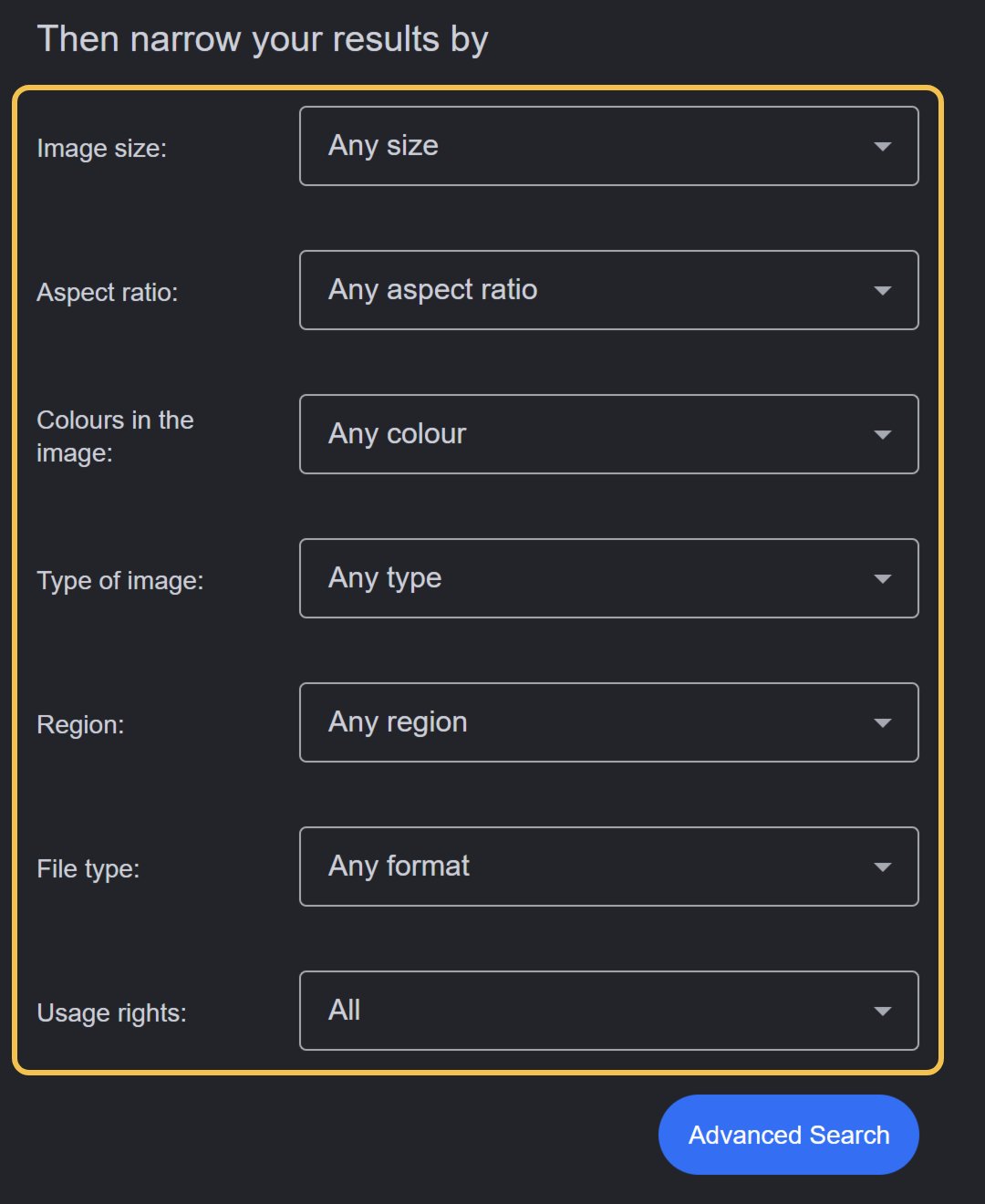
Real example: for a website banner, set the aspect ratio to Wide and the size to Larger than 2 MP. The recipes further down show more combinations. For an exact shape such as 3:1, work out the pixels with our aspect ratio calculator and check each result's size. To match a brand color, pick its exact shade from a reference image with our color picker first.
Use it when: the look of the image matters, or you plan to publish it. The usage rights filter only narrows the results, so still check the license on the page where the image appears.
4. Reverse Image Search With Google
Reverse image search means giving Google the picture instead of words. It finds pages that use the same image, and images that look like it. These are Google's steps, from its help page.
On a computer
- Go to google.com and click Search by image, the camera icon in the search box.
- A box called "Search any image with Google Lens" opens. Drag your picture into it, or click upload a file.
- For an image you found online, right-click it, choose Copy Image Address, and paste it into "Paste image link" instead.
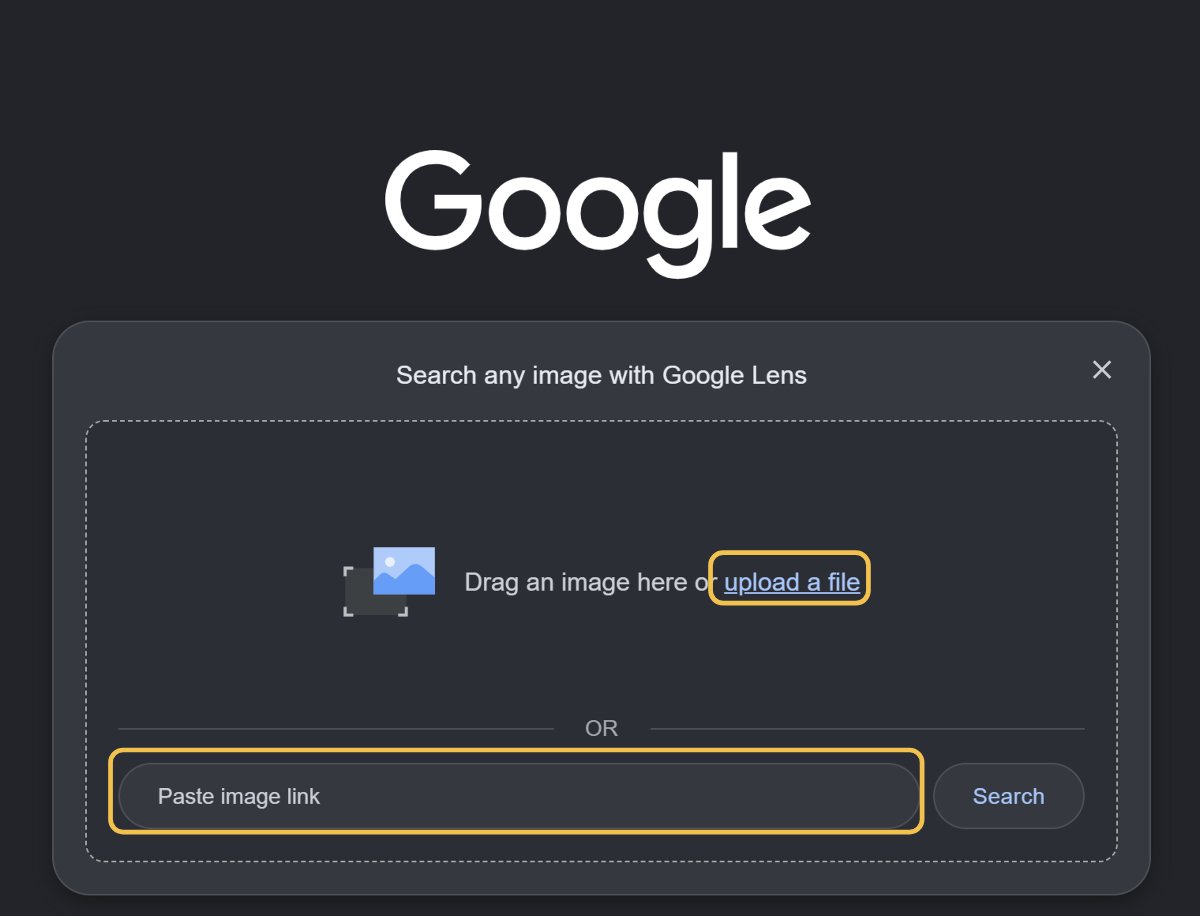
Chrome has a shortcut: right-click any image on a page and choose Search with Google Lens. The results open in a sidebar, so you stay on the page.
On a phone
On an iPhone or iPad, open the Google app, Chrome or Safari, tap Google Lens in the search bar and pick a photo. On Android, open the Google app or Chrome and tap Google Lens.
Real example: take a photo of a plant you can't name. Lens shows its likely name and pages about it, so you can compare your plant with the photos on those pages before you trust the answer.
Use it when: you have a picture and want to know where else it appears, or what's in it.
5. Search One Part of an Image
Google Lens looks at the whole picture, so a photo of a living room brings back living rooms. If you want the lamp, search the lamp.
After you upload a picture, Lens shows a selection box. Drag its corners around the object you care about, and the results change to match that part.
On another engine, crop the photo first. Cropping keeps the pixels you need and drops the rest, which isn't the same as resizing or stretching. Our guide to stretch, resize, crop and fit shows the difference.
Use it when: the picture is busy, or it's a screenshot, collage or meme where the part you care about is small.
6. Circle to Search on Android
On many Android phones, you can search anything on your screen without saving it first. Google's steps:
- Open the app, video or web page with the picture.
- Touch and hold the Home button or the navigation handle at the bottom of the screen.
- Circle, highlight or tap the thing you want to search.
Real example: pause a video on a jacket you like, circle it, and Google shows similar jackets without you taking a screenshot.
Use it when: the image is inside an app that won't let you save it, such as a video or a social feed.
7. Use TinEye to Find the Oldest or Biggest Copy
TinEye is a reverse image search engine that looks for copies of the same picture. Its help pages say it doesn't typically find similar images, meaning different photos of the same subject, but it does find copies that were cropped, edited or resized. Its most useful feature is the Sort by menu. Among its sort options:
- Oldest puts the earliest copies its crawlers found at the top. Use it to find who posted a photo first.
- Biggest image finds the largest copy. Use it when you only have a small or blurry version.
- Most changed usually shows the most heavily edited copies. Use it to see how a picture was altered.
Real example: a blog uses a photo with no credit. Search it in TinEye and sort by oldest, and the earliest pages are the first places to look for the photographer's name.
Enlarging a small copy yourself won't bring the detail back, because the software has to invent the new pixels. Find the bigger original with TinEye, then resize a copy to the exact size you need with the Image Resizer. Our guide to aspect ratio vs resolution explains why.
Use it when: you need the original source, a larger file, or proof that a picture was edited.
8. Use Bing Visual Search to Identify or Shop
Bing Visual Search is a good second opinion. Drag a picture onto the page, or choose Take photo, Paste image or URL, or Browse. Bing can then shop for what's in the picture, find similar images, identify objects, plants, animals and landmarks, or translate text.
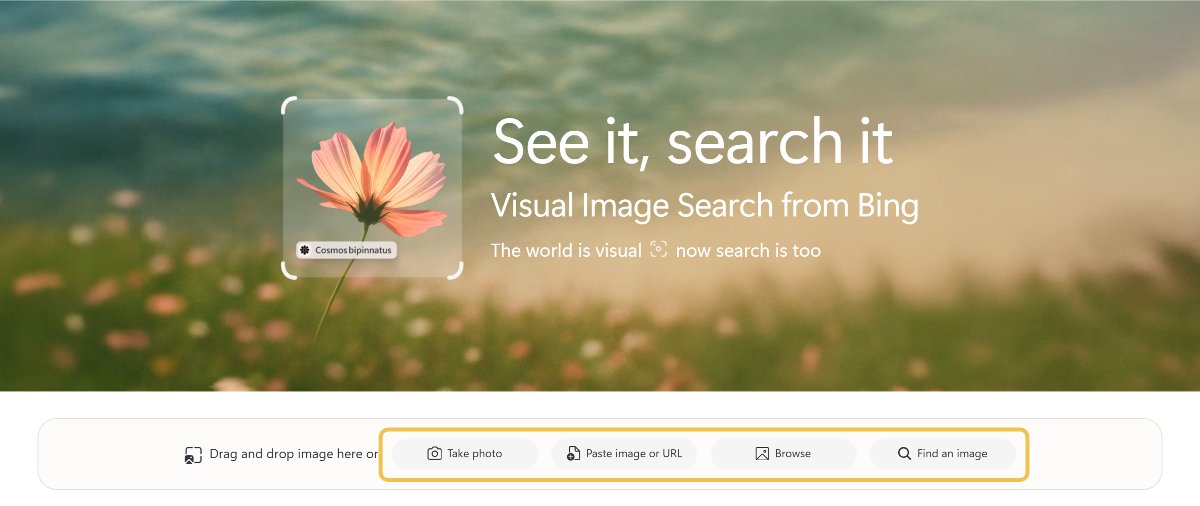
Real example: you like a chair in a café. Take a photo, upload it to Bing Visual Search and choose to shop, and Bing shows similar chairs and where to buy them.
Use it when: Google's results aren't helpful, or you want to buy something you saw in a photo. Each engine has indexed different pages, so a second engine often finds what the first missed.
9. Search the Text Inside an Image
Words in a picture are often a better lead than the picture itself. Look for shop signs, street names, product labels, usernames, watermarks and captions.
Type the clearest phrase into a normal Google search in quotation marks, and add whatever else you know. A shop name plus a city usually narrows things down fast. If the text is in another language, search it as written and search a translation too.
Check what you typed against the picture before you trust the results. Small, curved or stylized lettering is easy to misread, and one wrong letter sends you somewhere else.
Use it when: the photo has readable text, especially if the picture itself finds nothing.
10. Check When a Photo First Appeared and What's in the File
Many misleading images are real photos with the wrong date or caption, so the most useful check is when the picture first showed up online.
In Google, open the image in the image viewer and choose About this image. Google shows when it may have first seen the image, or similar versions, and other pages that use it. A photo said to be from this week that Google first saw years ago has been reused. That date is when Google found it, not when it was taken, so treat it as a clue rather than proof.
If you have the original file from a camera or phone, its EXIF data may show the date, the camera and sometimes the location. On Windows, right-click the file, choose Properties, then Details. On a Mac, open it in Preview and choose Tools, then Show Inspector.
Don't expect EXIF data on downloaded images. Many tools remove it when they save a new copy, and our own converter does this on purpose so your location isn't shared. The file type can still be a clue: a .heic file most likely came from an iPhone, as our guide to HEIC files explains, and a .webp file was probably saved from a website, as covered in what is WebP.
Use it when: you're checking a photo shared as news, or you need to know when and where a photo was taken.
Search Recipes: Exact Settings for Common Jobs
These are ready-made searches for jobs people do every day. Type the words into Advanced Image Search, set the filters shown, and click Advanced Search.
| What you need | Words to type | Filters to set |
|---|---|---|
| A logo or icon with a transparent background | the brand or thing, plus "logo" or "icon" | Colors: Transparent. File type: PNG files |
| A large, wide photo you may be able to reuse | what's in the photo | Image size: Larger than 4 MP. Aspect ratio: Wide. Usage rights: Creative Commons licenses |
| A phone wallpaper | the subject, plus "wallpaper" | Aspect ratio: Tall. Image size: Larger than 2 MP |
| A coloring page or outline to print | the subject, plus "coloring page" | Type of image: Line drawing. Colors: Black and white |
| An icon you can enlarge without blur | the thing, plus "icon" | File type: SVG files |
| A short animation or reaction | the feeling or action | Type of image: Animated. File type: GIF files |
| An official photo from the source | what's in the photo | Site or domain: the organization's website, such as nasa.gov |
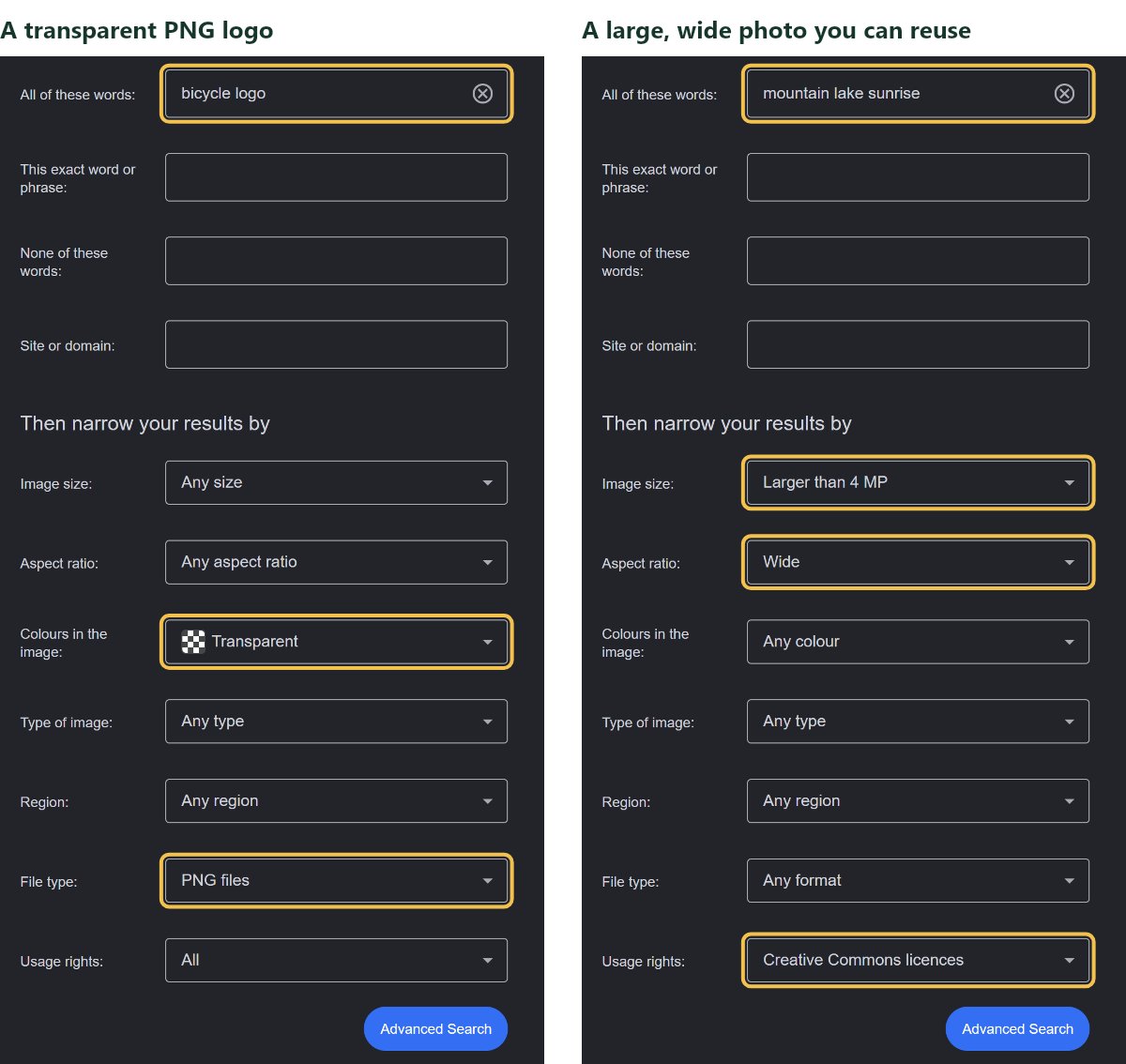
A "transparent" PNG still needs a check, because some files have a gray and white checkerboard drawn into the picture itself. Open the image and make sure the background really disappears. For SVG files, our guide to what an SVG file is explains why they stay sharp. For GIFs, see what a GIF is.
Google Lens, TinEye or Bing: Which Engine for Which Job?
Each engine is built for different questions, so the choice matters more than which one is "best".
| Engine | Best for | Worth knowing |
|---|---|---|
| Google Lens | Identifying things, similar images, searching one part of a picture | Works on computer and phone, and through Circle to Search on many Android phones |
| TinEye | Copies of the same image, the oldest copy, the biggest copy | Doesn't usually find similar-looking photos. Says it never saves the images you upload |
| Bing Visual Search | Shopping for what's in a photo, a second opinion | Lets you take a photo, paste an image or link, or browse for a file |
When the first engine finds nothing useful, try a second one. Each has crawled different pages, so their results rarely match exactly.
Why Did My Image Search Find Nothing?
| What happened | Likely cause | What to try |
|---|---|---|
| Only similar images came back | The photo isn't on any page the engine has indexed | Try TinEye and Bing too, then accept it may be unpublished |
| A screenshot found nothing | App bars, captions and comments change how the image looks | Crop to the photo itself and search again |
| The engine found the subject but not the photo | You searched a whole scene | Select or crop just the object (technique 5) |
| A copy with text or a border found nothing | The extra parts hide the original | Search a clean area, or crop the border away |
| Text or logos read backwards | The copy was mirrored | Flip it back, then search |
| People or round objects look squashed | The copy was stretched | Restore its proportions with our Photo Stretcher, then search |
| A tiny thumbnail found nothing | There's too little detail to match | Find any larger copy first (technique 7) |
No match doesn't prove a photo is original or genuine. It may be new, private, poorly indexed, or changed enough that the engine missed it. If a copy looks squashed or stretched, the Photo Stretcher can put it back to its natural proportions before you search.
Is It Safe to Upload a Photo to an Image Search?
It depends on the engine, so check before you upload anything private. TinEye says it never saves the images you upload: it shows your results and deletes the file. For Google Lens, a setting called Visual Search History decides whether your images are saved to your account. Google says it's off by default, and you can delete saved images at activity.google.com.
With any engine, crop out faces you don't need, and never upload ID cards, documents or anything that shows an address.
Can You Use an Image You Found?
Finding an image doesn't give you the right to use it. Open the page where it appears and look for a license or a credit line. Google's usage rights filter narrows results to images marked with Creative Commons licenses, or with commercial and other licenses, but the license on the source page is what counts. A Creative Commons license can still require credit or forbid commercial use, so read which one applies.
If you publish your own photos and want people to know they can license them, Google can show a Licensable badge when you add license details to the page or to the image file. To get your images found at all, Google's image SEO guidelines ask for descriptive file names, useful alt text and images placed near related text. Smaller files help too, and our guide to reducing image size shows how.
Frequently Asked Questions
What is the best image search technique?
None is best for everything, because each answers a different question. For "where is this photo from?", use a reverse image search, then TinEye sorted by oldest. For "what is this thing?", use Google Lens or Bing Visual Search. For "I need a picture of a…", use specific keywords and filters.
How do I search with an image instead of words?
On a computer, go to google.com, click Search by image and upload the file. On a phone, tap Google Lens in the Google app or Chrome. In Chrome on a computer, you can also right-click any image and choose Search with Google Lens.
How do I find images with a transparent background?
Open Google's Advanced Image Search, set Colors in the image to Transparent and File type to PNG files, then search for what you need. Open a result to check the background really is transparent.
Can I reverse search a screenshot?
Yes, but crop it first. App bars, captions and comments make the image look different from the original.
How do I search an image from a video?
On Android, use Circle to Search while the video is paused. On other devices, pause on a clear frame, take a screenshot, crop it to the scene, and search it like any other image.
How do I find the original source of a picture?
Search it in TinEye, sort the results by oldest, and check the earliest pages for a photographer's name or a license. Compare those with what Google's About this image shows.
How do I find a higher-resolution version of an image?
Search it in TinEye and sort by biggest image. Enlarging a small copy yourself makes it bigger but not sharper.
How do I check if a photo is old?
Open it in Google and choose About this image to see when Google may have first seen it, or search it in TinEye and sort by oldest. Neither gives the date it was taken, but both show if it was online long before the claim you're checking.
Summary
Use words, operators and filters when you need a picture. Use a reverse image search when you have one, and select just the part you care about when the photo is busy. Turn to TinEye for the oldest or biggest copy, Bing for a second opinion or for shopping, the text in the picture when the image itself finds nothing, and About this image when you need to know whether a photo is old.

 Photo Stretcher
About Sabir Ali
Founder of Photo Stretcher
I built Photo Stretcher because resizing an image online usually means uploading it to a stranger's server and hoping for the best. Everything here runs in your browser instead: a stretcher, a resizer, a KB compressor, a converter. Your files never leave your device, and no pixel is invented by AI.
I review every guide on this site before it goes live. If a method stops working, I update the guide.